Edit your profile
For: Everyone
On the Settings page you can change your display name and your avatar.
Before you start
- Where to find it: the Settings page (/client/settings, /trainer/settings, /settings).
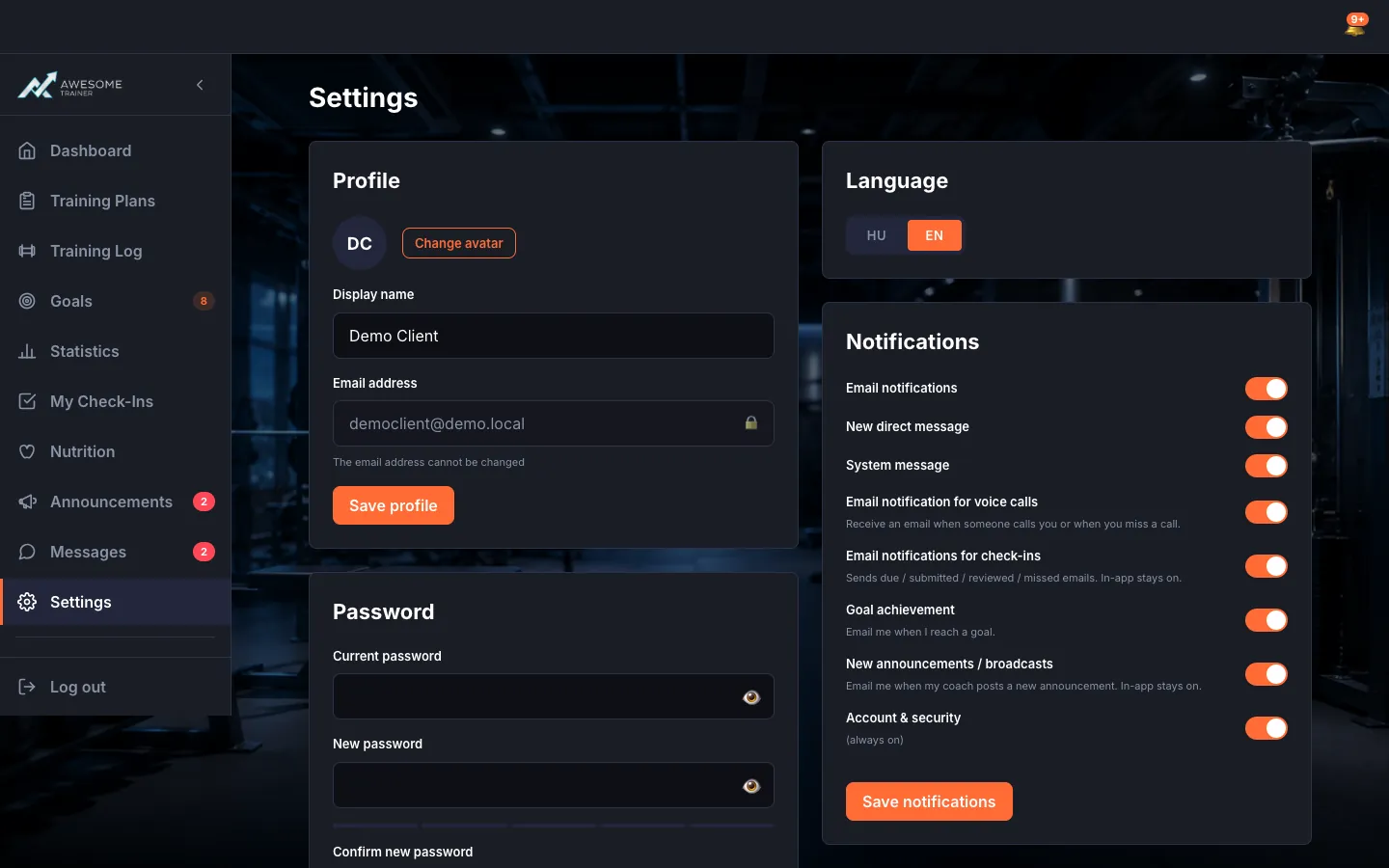
- The page is built from cards: Profile, Password, Language, Notifications, Data — plus Manage clients and Subscription & payment when you're a trainer.
Steps
Open Settings. The page is titled "Settings" and has a clean, card-based layout. If something goes wrong loading it: "Could not load the settings. Please try again."
Edit your profile. On the "Profile" card the "Display name" (max 60 characters) is yours to edit; the "Email address" is read-only, since it can't be changed. You can also swap or drop your avatar ("Change avatar" / "Remove avatar", max 2 MB, PNG/JPEG/WEBP), then "Save profile" → "Profile saved."
Tips
Your email address can't be changed — that's for your own security.
Troubleshooting
| Symptom | Cause | Fix |
|---|---|---|
| "Save failed. Please try again." | Temporary network or server error. | Retry the save, and check your connection. |