Send an announcement to your clients
For: Trainer
Send one message to many clients at once: write the draft, pick the audience, set the options, send or schedule it, and follow the stats.
Before you start
- You start here: "Announcements" console (route: /trainer/announcements).
- "Title" and "Message" are required before sending; scheduling needs a time in the future.
Steps
Open the console. At the top, the summary tiles (Active clients, Broadcasts sent, Avg. read rate, Pending acks). Below them, three tabs organize your broadcasts: "Sent", "Scheduled", "Drafts". Each card shows the title, a snippet of the text, the recipient count, status pills (Pinned, Sent, Scheduled, Draft, Ack required) and a read summary — plus the "New broadcast" button top-right.
Write a new broadcast. "New broadcast" (or "Edit" on a draft) opens the composer: "Draft — nothing is sent until you hit Send." Fill in the "Title" and "Message" fields — those two are required before you can send.
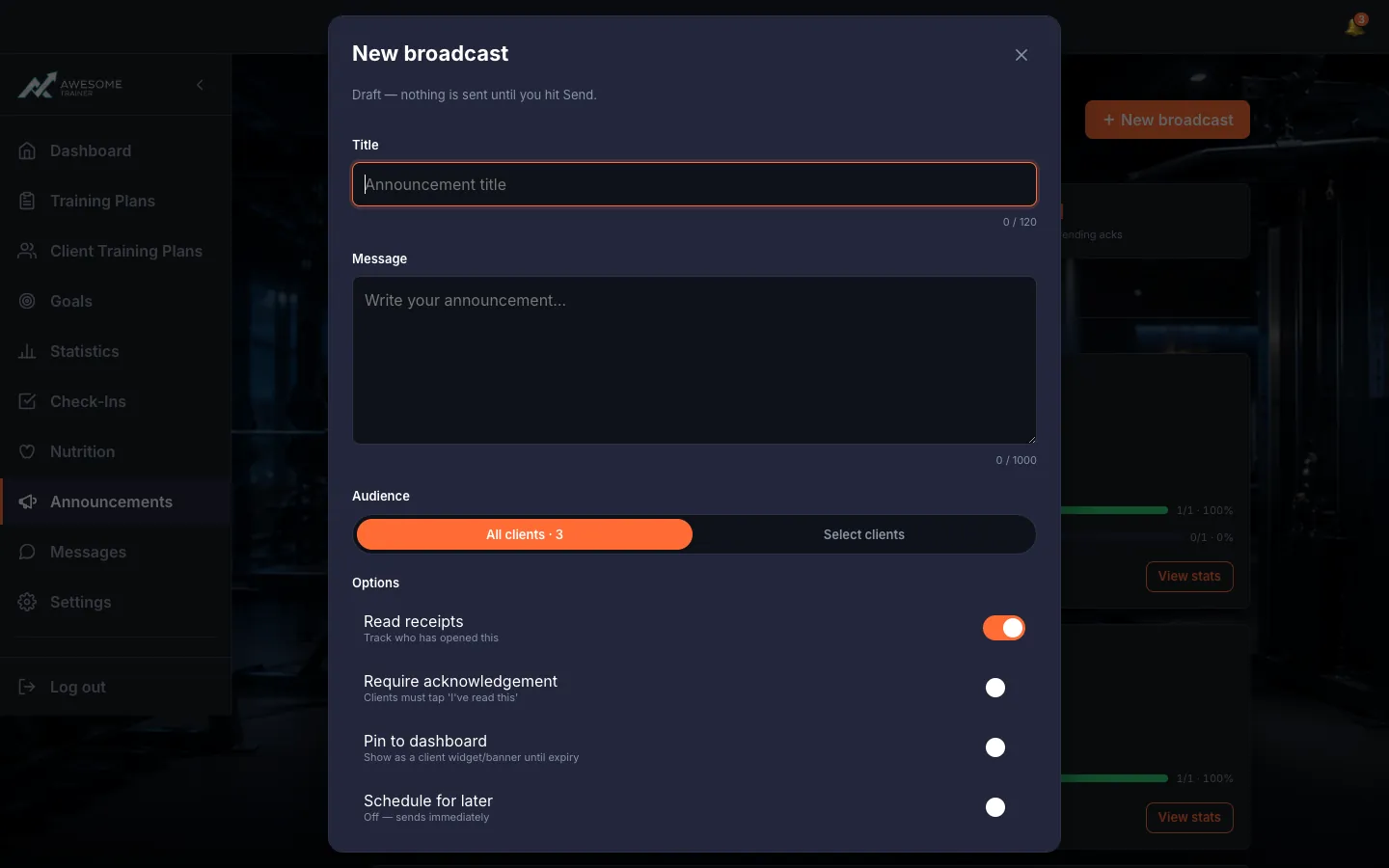
Choose the audience. Under "Audience", pick "All clients" or "Select clients". The latter opens the audience picker — search, "Select all", and "Save selection as segment", then "Use selection" ("Targeting … clients").
Set the options and send. Under "Options", fine-tune with the toggles: "Read receipts" (who opened it), "Require acknowledgement" (the client must confirm), "Pin to dashboard" (a widget for the client until expiry), "Schedule for later" (Date/Time) and "Expiry (optional)". Then "Save draft", "Schedule broadcast" or "Send to … clients". After sending: "Sent to … clients — notifications queued".
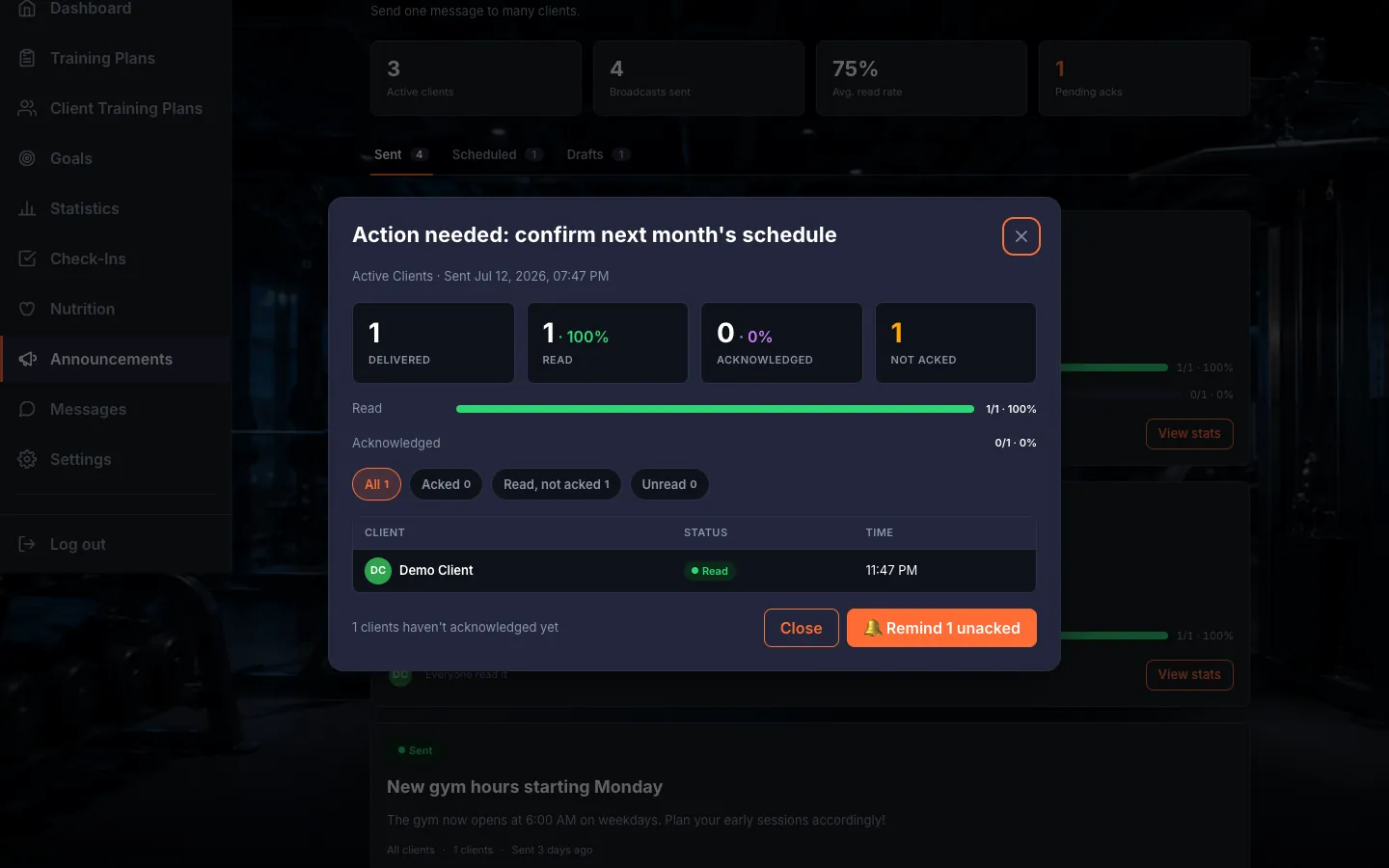
Track the stats. A sent broadcast's "View stats" button opens the panel: Delivered / Read / Acknowledged / Not acked tiles, a filterable recipient table (Client, Status, Time — filters: All, Acked, Read not acked, Unread), and — if you asked for acknowledgement — the "Remind … unacked" button to nudge the stragglers.
Tips
"Save selection as segment" creates a named, reusable recipient group — next time you pull it up in one click.
Broadcasts you've already sent keep their recipients even if you later delete the segment.
You can also send an announcement right from the "Manage clients" dialog ("Send an announcement to these clients") — handy when you want the same message to reach your whole roster at once.
Troubleshooting
| Symptom | Cause | Fix |
|---|---|---|
| "Add a title before sending." / "Add a message before sending." | The required "Title" or "Message" is missing. | Fill in both fields, then send. |
| "Pick a time in the future." | The scheduled time isn't in the future. | Set a future Date/Time value. |
| "No active clients to send to…" | You have no active recipient clients. | Make sure you have at least one active, connected client first. |