Send and read messages
For: Everyone
Direct, two-way conversations between trainer and client, plus a "System" conversation for reaching the admin.
Before you start
- You start here: "Messages" inbox (route: /client/messages, /trainer/messages).
- A direct conversation needs the client to have an assigned trainer.
Steps
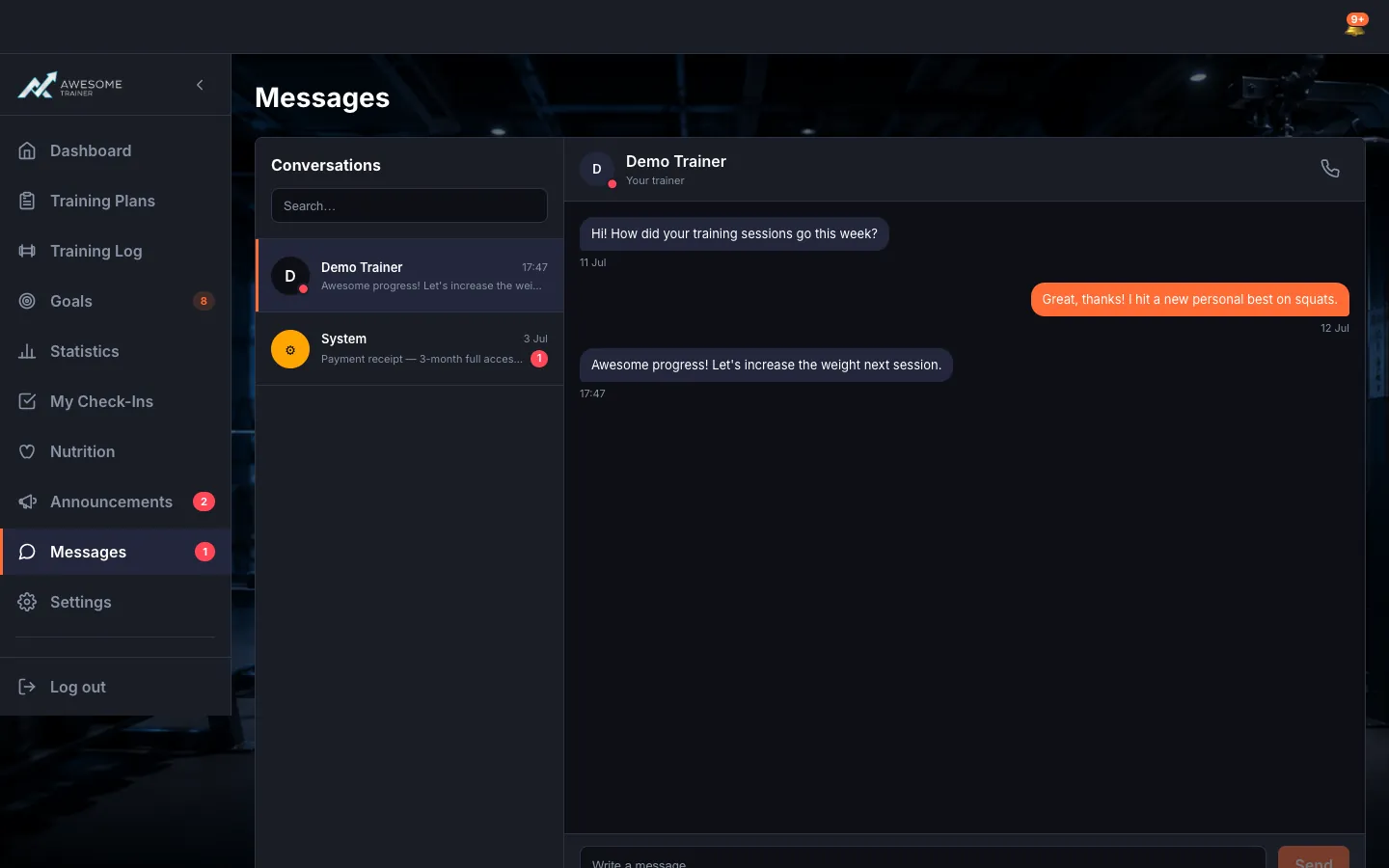
Open the inbox. On the "Messages" page, the "Conversations" list sits on the left with search at the top ("Search…"). Each conversation shows the other party's name, a preview of the last message and the unread count. The "System" conversation is there too ("your message reaches the admin"). When empty: "You have no messages yet."
Pick a conversation. Until you pick one: "Select a conversation to view it." As a client with no trainer yet: "You don't have an assigned trainer yet" — once one is assigned, you can message each other directly here.
Write and send a message. In the opened conversation, the other party's name and status sit at the top ("Your trainer" / "Your client"), the messages appear in bubbles (yours and theirs), and at the bottom the "Write a message…" field with the "Send" button. Load older messages by scrolling up ("Loading older messages…").
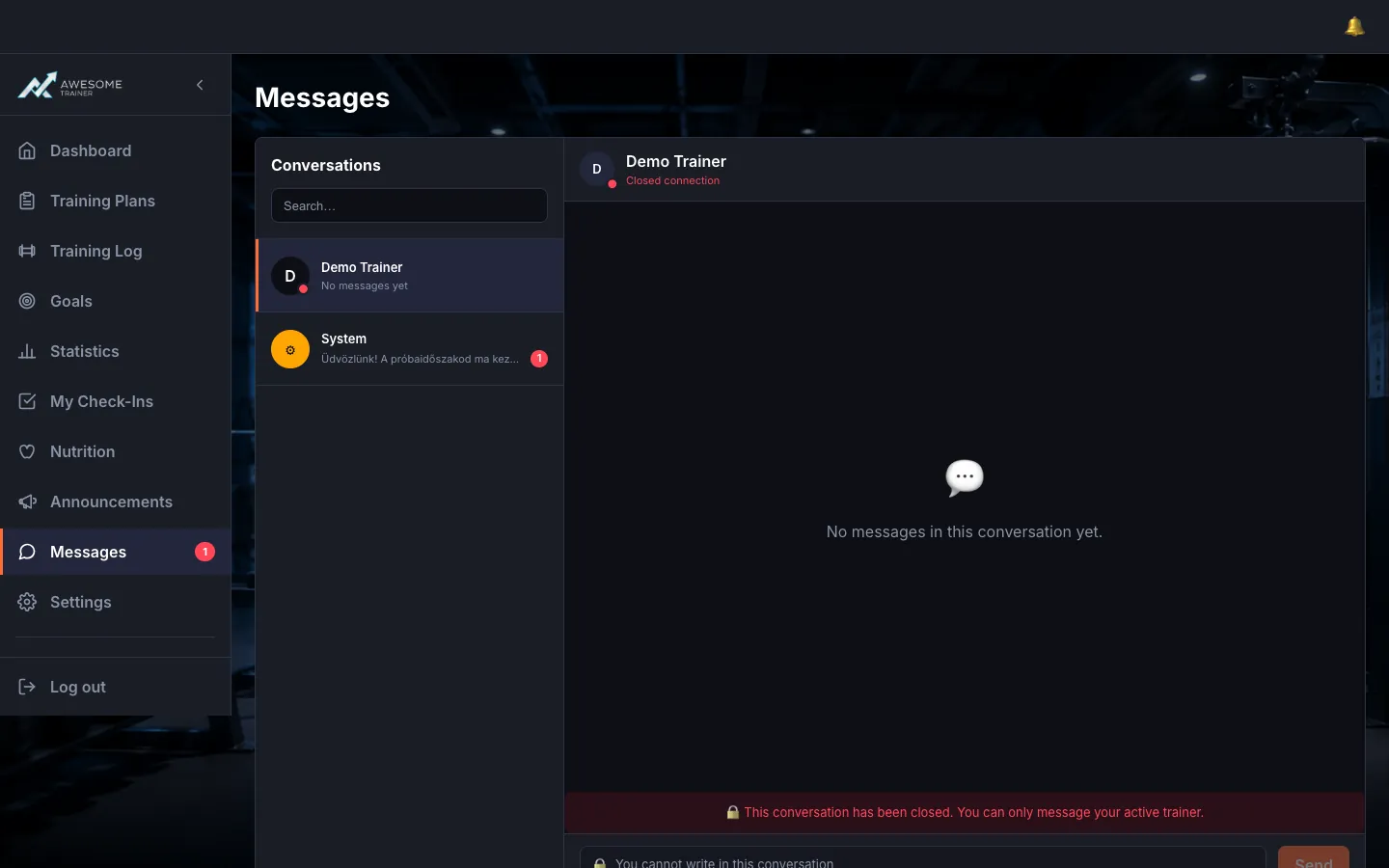
Handle a closed conversation. If the connection is closed (the trainer removed the client, or the other party deleted their account), the conversation becomes read-only — e.g. "🔒 This conversation has been closed. You can only message your active trainer." or "🔒 This user deleted their account. The conversation is read-only." The text field is disabled then.
Start a new conversation (trainer). As a trainer, "New conversation" opens a picker: "Start a conversation with:" — the clients you don't yet have a conversation with. Pick one and it starts. If you already have them all: "You already have a conversation with all of your clients."
Tips
Both clients and trainers reach the admin through the "System" conversation — "your message reaches the admin".
Load older messages by scrolling up ("Loading older messages…").
Troubleshooting
| Symptom | Cause | Fix |
|---|---|---|
| "Failed to send the message. Please try again." | Network or server error while sending. | Check your connection and resend. |
| "You don't have an assigned trainer yet" | No trainer is assigned to you as a client. | Once a trainer is assigned you can message directly; system messages are available in the list in the meantime. |
| "Couldn't start the conversation. Please try again." | A momentary error while starting the new conversation. | Try starting the conversation again from the list. |