Make and answer voice calls
For: Everyone
Talk live with your trainer or client — a real voice call, right inside the app (WebRTC).
Before you start
- Where to find it: click the "Voice call" button in a conversation header (Messages) or on a client/trainer profile.
- What you'll need: microphone permission and an HTTPS connection.
- Calls reach you anywhere: the incoming call and the active call bar show up on every page of the app.
Steps
Start the call. In a conversation or on a profile, click the "Voice call" button. Without a secure connection the tooltip tells you: "Voice calls require a secure connection (HTTPS)."
Outgoing call. A full-screen overlay appears: "VOICE CALL", the callee's name, the "Ringing…" state, and the "Cancel" button in case you change your mind.
Answer an incoming call. When someone calls you, the "INCOMING VOICE CALL" overlay pops up on any screen with the caller's name and role ("Your trainer" / "Your client"). Just press "Accept" or "Decline".
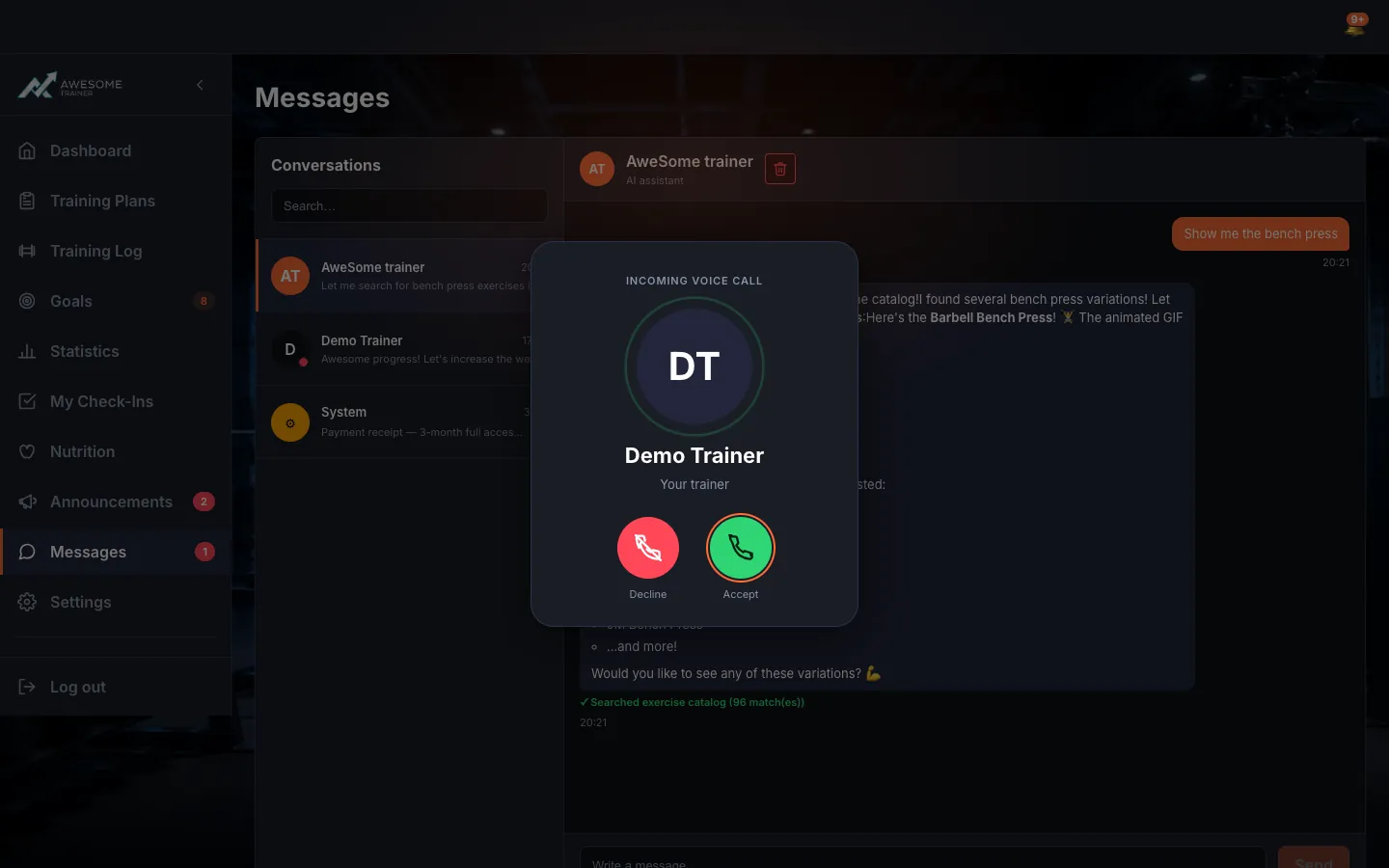
Talk from the call bar. After you accept, a slim bar follows you as you navigate: "On call", with the mute ("Mute microphone" / "Unmute microphone") and hang-up buttons. Click it and the full panel opens.
Expanded call panel. The panel keeps everything in one place: "ON CALL", the other party's name, the call duration, the connection quality ("HD" or "Weak connection"), and the "Mute", "Speaker" and "Hang up" controls. If your browser can't switch speakers: "Speaker control not available in this browser."
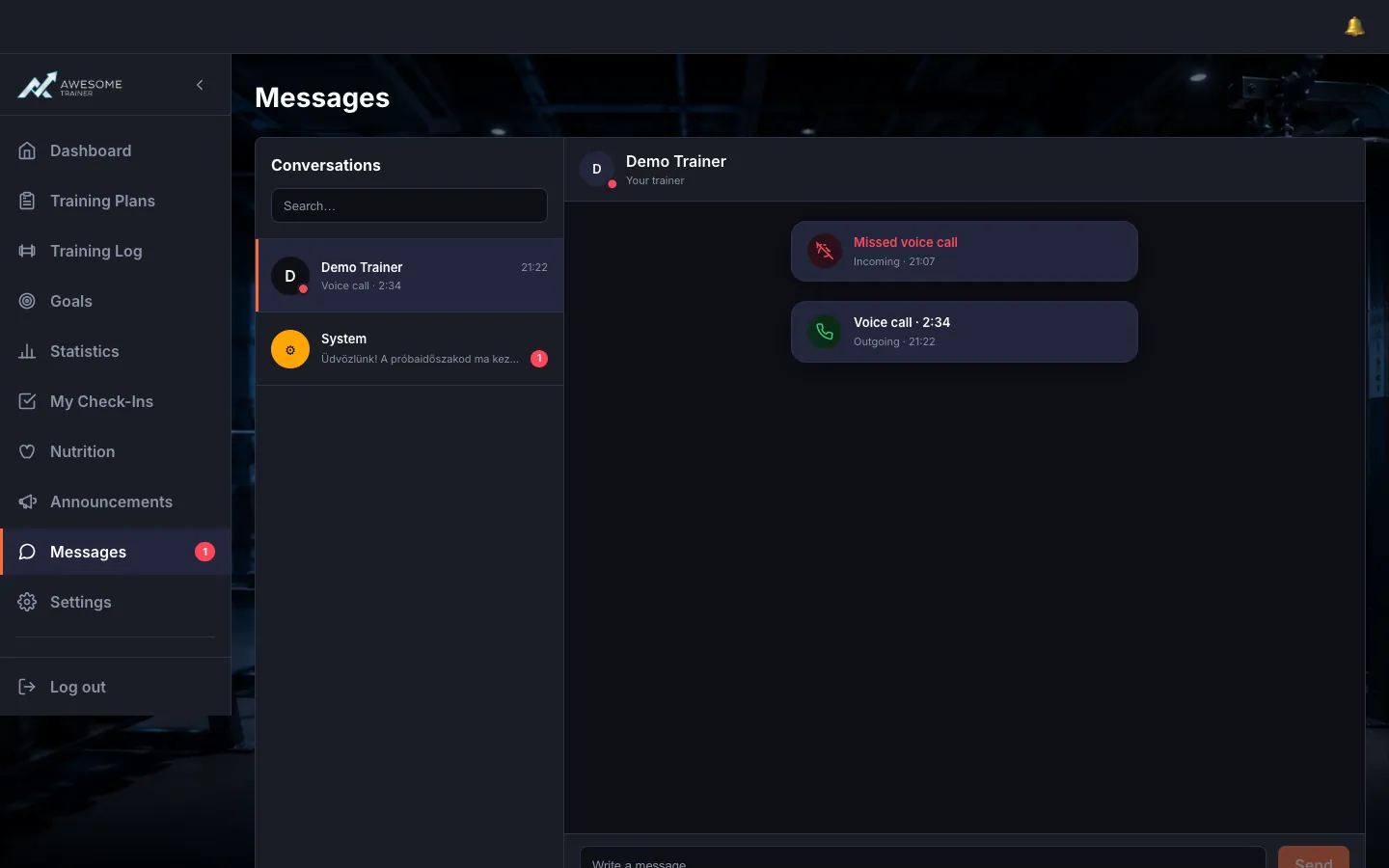
Look back at your calls. Every call stays as a card in Messages — "Voice call · …", "Missed voice call", "Call declined", "Call canceled" or "Call failed" — marking the direction (Outgoing / Incoming) with a "Call back" / "Call again" button if you want another go.
Tips
You can answer a call from anywhere — you don't have to stay in Messages, the bar and overlay come with you.
Click the call bar anytime to open the full panel with mute and the speaker toggle.
Troubleshooting
| Symptom | Cause | Fix |
|---|---|---|
| The call button is greyed out / won't start | No secure (HTTPS) connection. | Open the app over HTTPS — the tooltip flags this too: "Voice calls require a secure connection (HTTPS)." |
| "Microphone access blocked. Please allow microphone access in your browser settings." | The browser has blocked the microphone. | Allow microphone access in your browser settings, then try again. |
| "A call is already in progress." | You can only have one call at a time. | End the current call before starting a new one. |
| "Could not connect. Please try again." / "Reconnecting…" | The network dropped. | Check your connection — the system tries to reconnect on its own, or use "Call back" to redial. |