Manage your nutrition plans
For: Client
The "My Plan" tab shows the plans your trainer assigned and your own — here you activate, copy, edit or build a new one.
Before you start
- Your Today targets come from your active plan — if you don't have one yet, activate or create one first.
Steps
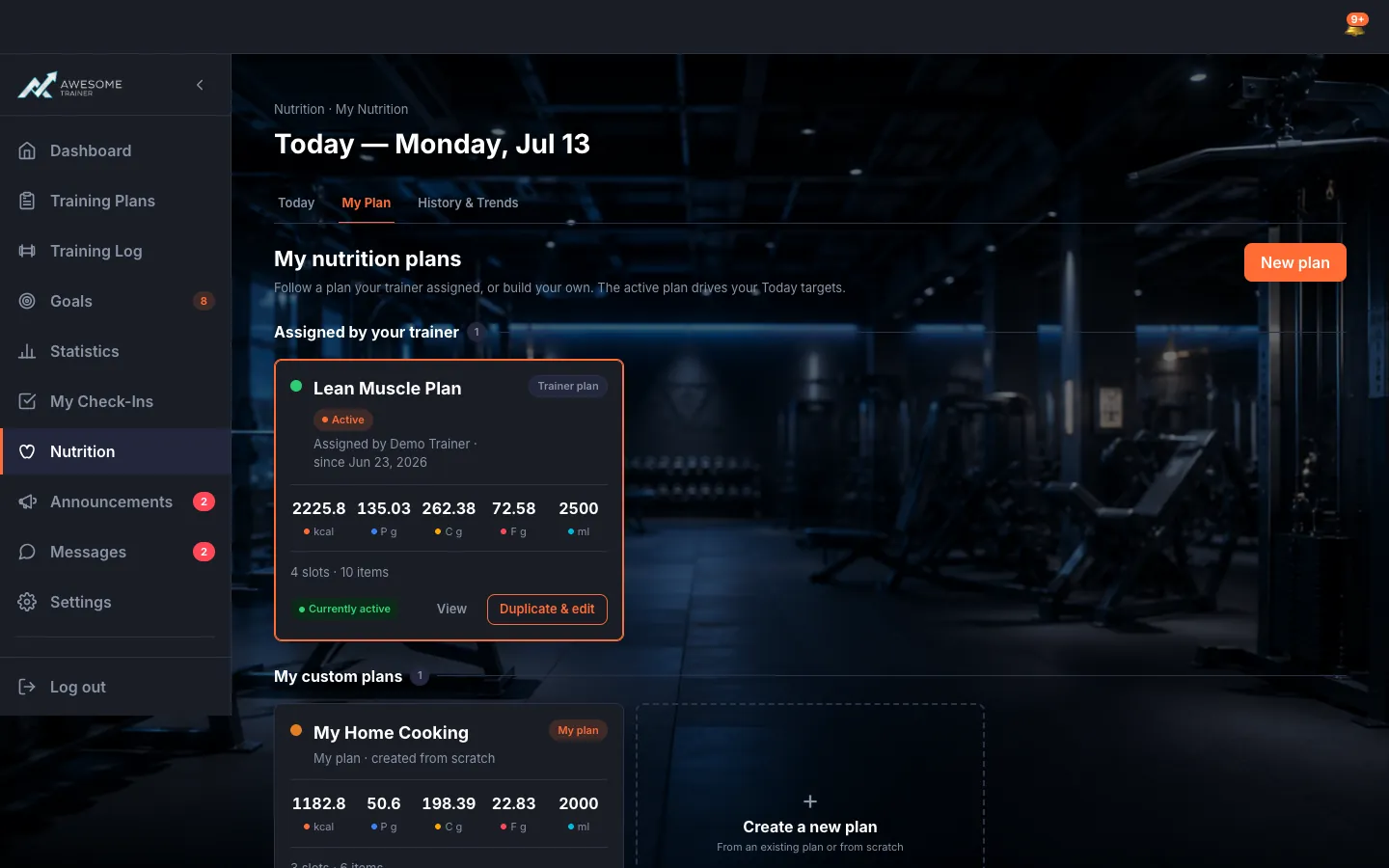
Manage your plans on the "My Plan" tab. You'll see them in two sections: "Assigned by your trainer" and "My custom plans". Each card shows the calorie/macro/water values, the active marker, and the actions: "Set active", "View", "Duplicate & edit", "Edit", "Delete". For a new one, hit "New plan".
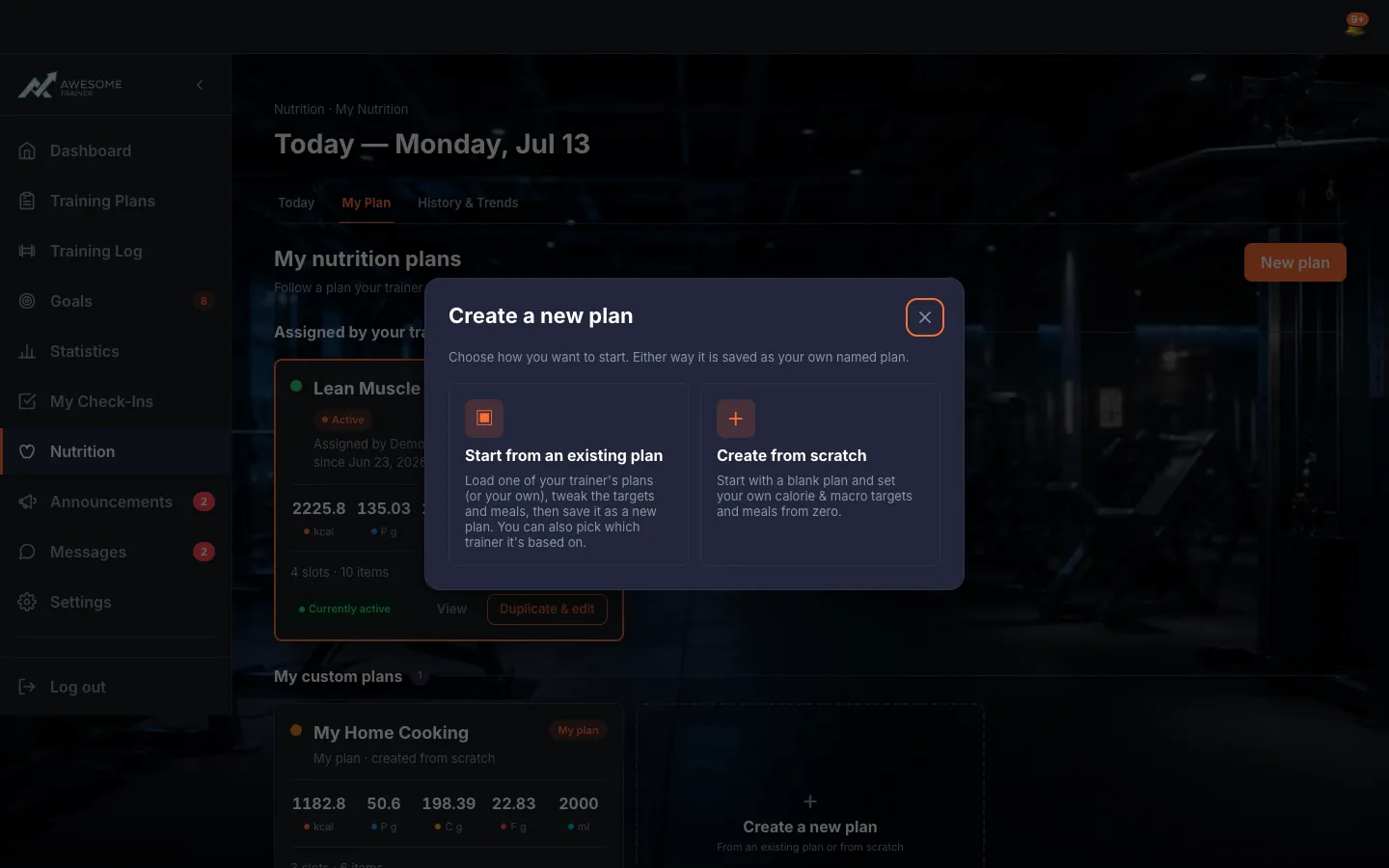
Build your own plan. "Create a new plan" asks whether you'll "Start from an existing plan" or "Create from scratch". In the editor you set the name, colour, daily targets (calculated from the meals) and the meal template, then "Save as your own plan". When you activate it: "'…' is now your active plan."
Tips
If you don't have an active plan right now, the "Today" tab shows "No active plan yet" — activate or create one and your targets appear straight away.
Troubleshooting
| Symptom | Cause | Fix |
|---|---|---|
| "No active plan yet" | You don't have an active nutrition plan set yet. | Hit "Activate or create a plan" on the Today tab, or "Set active" on a plan on the My Plan tab. |