Log your meals and water
For: Client
Log your daily meals and water, manage your plans, and follow your history and trends — all in one place.
Before you start
- You start here: "My Nutrition" (route: /nutrition).
- Your Today targets come from your active plan — if you don't have one yet, activate or create one first.
Steps
Open the "Today" tab. At the top, the calorie ring shows how much of your target you've eaten and what's left ("kcal left"). Below it sit your three macros: Protein, Carbs, Fat (g). One glance tells you where you stand today.
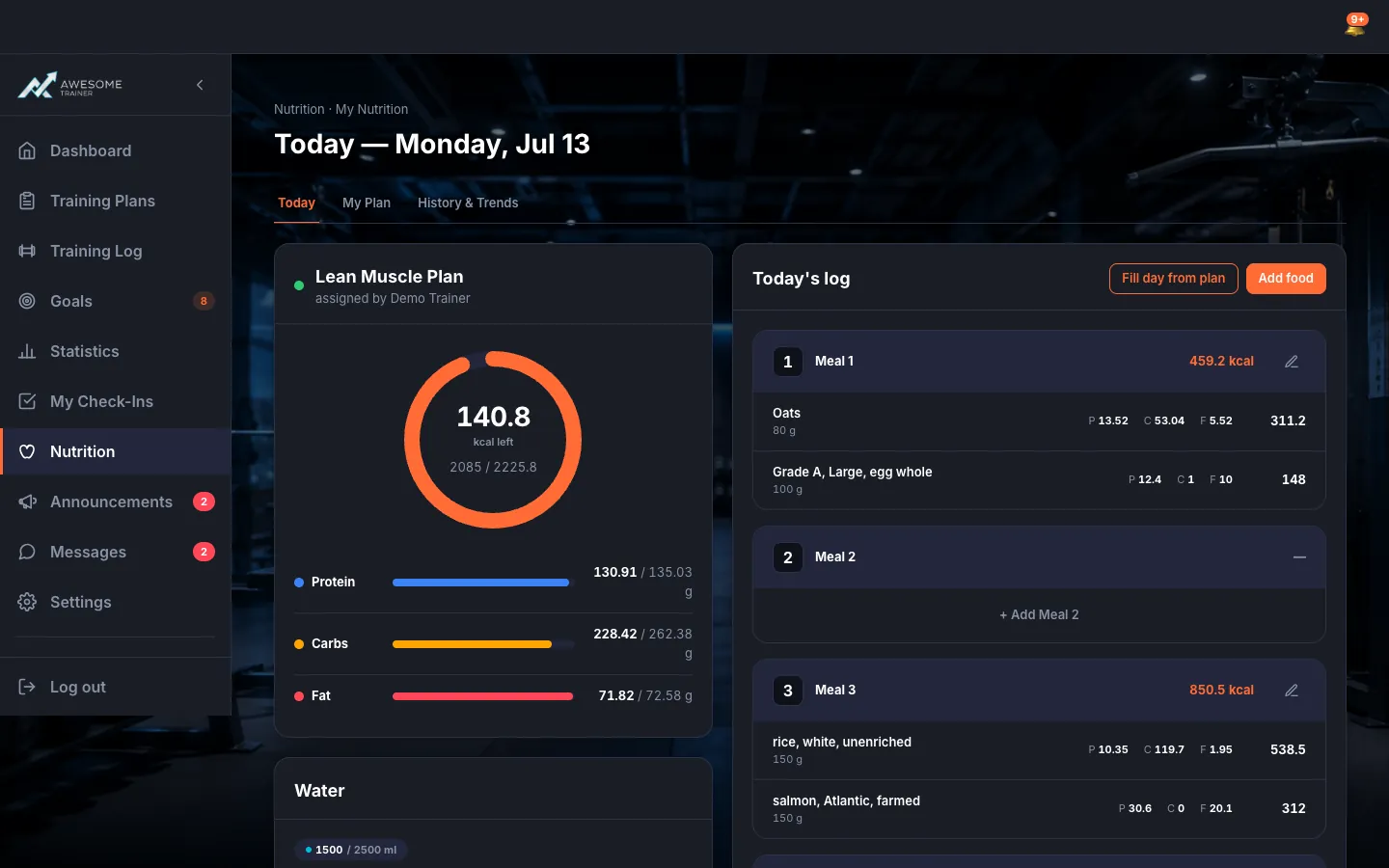
Log your water. On the Water card, tap a glass to add or remove a serving — "Each cup = … ml", and you'll see "… cups to go". When you hit the goal it says: "target reached."
Add a food to a meal. "Today's log" gives you 6 meal slots — Breakfast, Morning Snack, Lunch, Afternoon Snack, Dinner, Snack. The "+ Add …" next to a slot opens the food picker, or fill the whole day in one move with "Fill day from plan" straight from your plan's template.
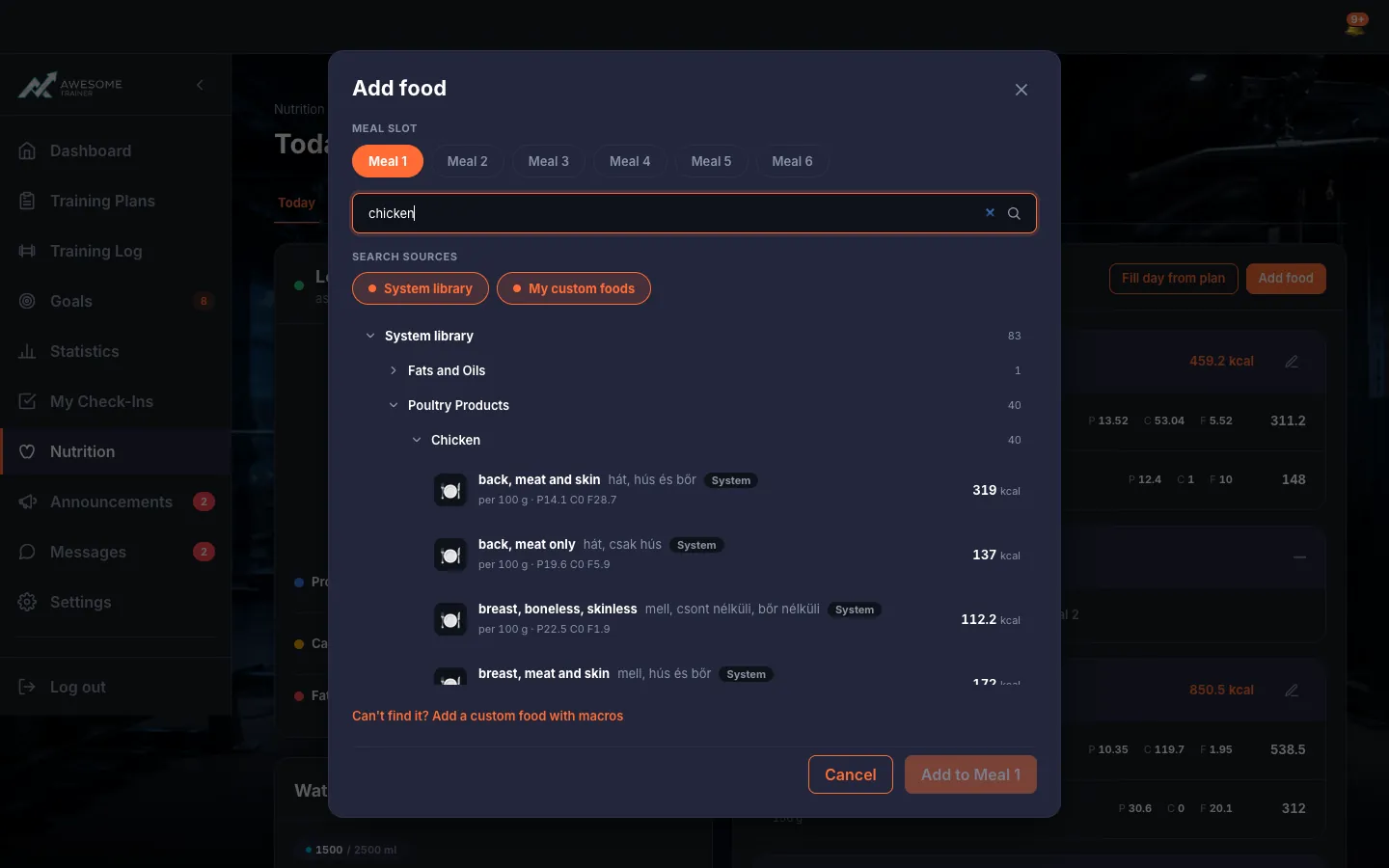
Find the food and log it. In the "Add food" picker, pick the meal slot, then search the "System library" or "My custom foods" — each result shows its kcal and macros. Set the "Quantity" and "Unit", then "Add to …". Done: "Food added to your log."
Look back at your history. On "History & Trends", the "Calories — last 14 days" chart measures your recent days against your target, with the "Daily log" broken down day by day below. Tap a day for its meals, a meal for its foods — and bring any past meal into today's log with the "Copy" button.
Tips
"Fill day from plan" populates the day in seconds — you choose "Keep & add" or "Replace the day".
If you don't have an active plan right now, the "Today" tab shows "No active plan yet" — activate or create one and your targets appear straight away.
Troubleshooting
| Symptom | Cause | Fix |
|---|---|---|
| "No active plan yet" | You don't have an active nutrition plan set yet. | Hit "Activate or create a plan" on the Today tab, or "Set active" on a plan on the My Plan tab. |
| "No foods match '…'." | The food you searched for isn't in the system library or among your custom foods. | Add it quickly with "Can't find it? Add a custom food with macros". |
| "Couldn't load today's log." | A momentary loading hiccup. | Refresh the page and try again. |