Review submitted check-ins
For: Trainer
In the review queue you go through your clients' submitted check-ins one by one, against their objective adherence.
Before you start
- How to get here: /trainer/checkins, or the dashboard "Check-Ins" widget.
Steps
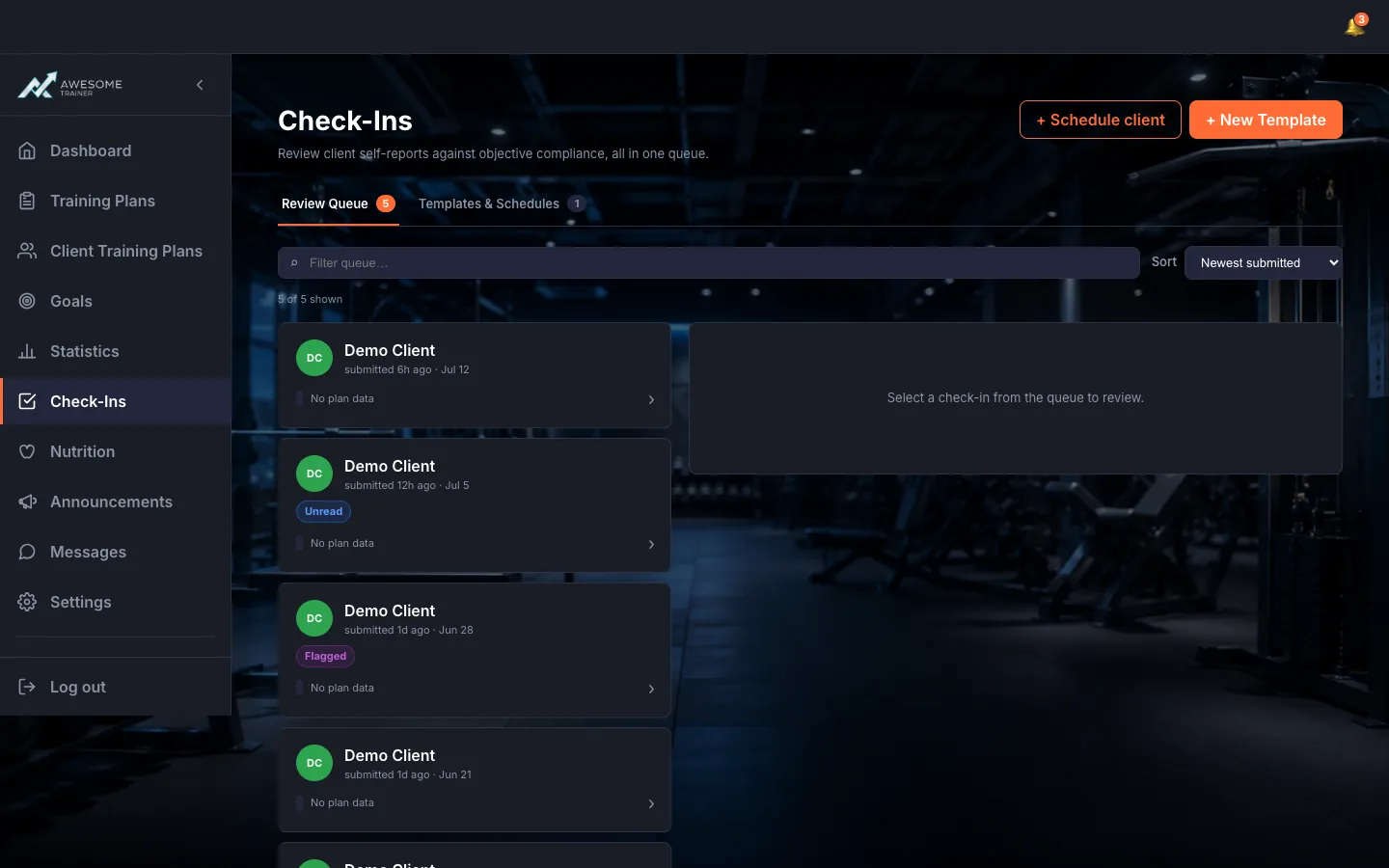
Work the review queue. On the "Review Queue" tab, every incoming check-in shows up in a single queue. Up top you filter ("Filter queue…") and sort ("Priority (high → low)", "Newest submitted", "Lowest compliance"), and you'll see "… of … shown". Each item shows the client, the submission time, the compliance and its badges: "Overdue", "Low compliance", "Flagged problem", "Unread".
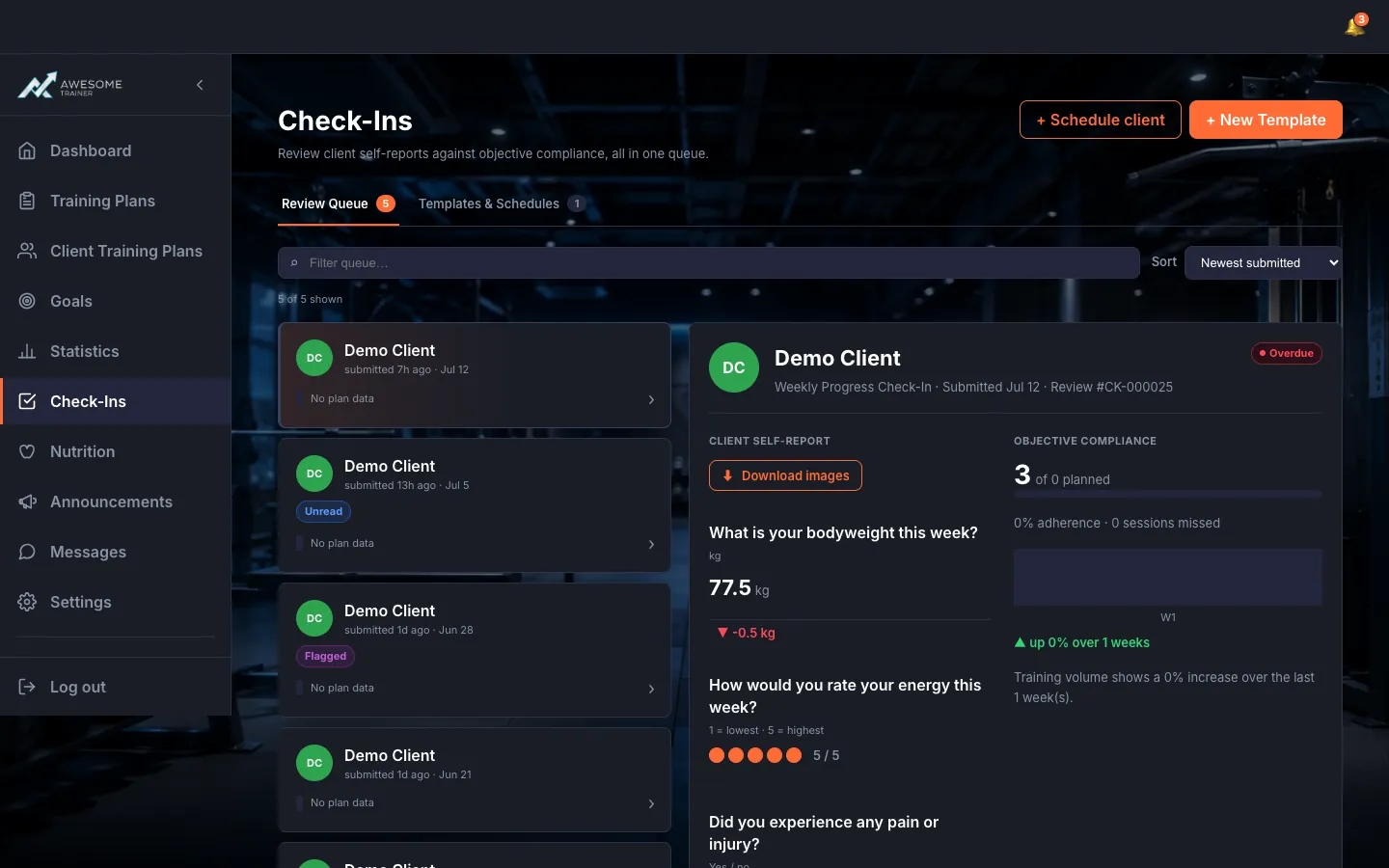
Review a submission. Select an item and you get the "Client self-report" on the left (the answers, with any attached photos) and "Objective compliance" on the right: logged vs. planned sessions, "…% adherence · … sessions missed" and a weekly volume trend. Write your reply in "Your response to …" and send it with "Send & mark reviewed →". Optionally tick "Post my response to … in Messages", and use the "Flag for programme adjustment" toggle to send it to the Programmes queue.
Inspect form-check photos. Click an attached form-check photo to open the "Form-check photo" lightbox: a full-size image, "Previous photo" / "Next photo" navigation, a "… / …" counter and "Download images".
Review a client's history. The "Check-in history" link on a client row leads to the "… — Check-in history" page. Here all of the client's past check-ins line up with status badges (Reviewed / Submitted / Missed / Open), with the ones flagged for programme adjustment marked. Click an item to open its details.
Tips
The queue keys speed things up: J / K to move, Enter to send & advance, S to skip.
The dashboard "Check-Ins" widget summarizes what's awaiting review, and the "Open queue →" link jumps you straight here.
Troubleshooting
| Symptom | Cause | Fix |
|---|---|---|
| "Write a response to enable Send." | The response field is empty. | Type a few lines in the "Your response to …" field — that enables Send. |
| "No workout data recorded for this period." | The client didn't log any workouts in that period. | Nothing to fix — review the submission on the self-report; the compliance figures appear once there's logged training. |