Submit a check-in and read your trainer's reply
For: Client
Fill in and submit the recurring self-report check-in your trainer schedules — so your plan adapts to how you feel — then read the trainer's response on past submissions.
Before you start
- How to get here: /me/checkins, or the due indicator on the dashboard and the page.
- For anything to fill in, your trainer needs to set up a check-in schedule for you.
Steps
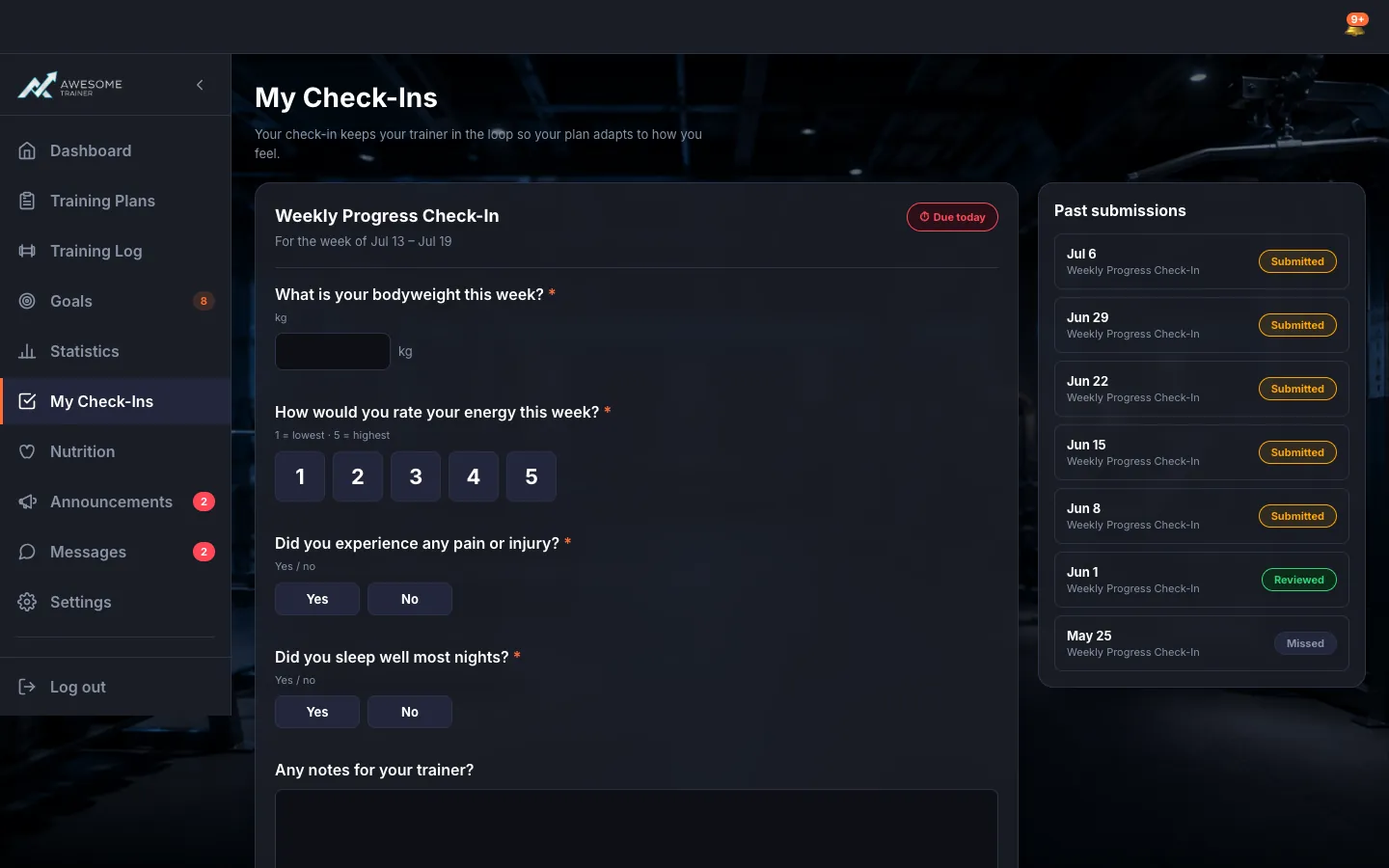
Check what's due. At the top of the "My Check-Ins" page, a status pill tells you where you stand: "Due today", "Due in … days" or "Overdue". The week shows next to it: "For the week of … – …". This pill also takes you straight from the dashboard to the submission form.
Fill in the form. The form pulls in your trainer's template questions, by type: numeric (with a unit), 1–5 scale ("1 = lowest · 5 = highest"), yes/no, free text and photo upload. You need to answer the required questions ("This question is required.") before you can submit.
Upload photos if needed. For a photo-upload question, under "Uploaded photos" the "Add photo" button lets you upload up to 4 photos (JPEG, PNG or WebP), and you can remove any of them. Good to know: "The uploaded images will be deleted in … days."
Save or submit. Two buttons wait at the bottom: "Save & finish later" if you're not done yet (you'll get "Draft saved"), or "Submit check-in →" when you're ready (success: "Check-in submitted").
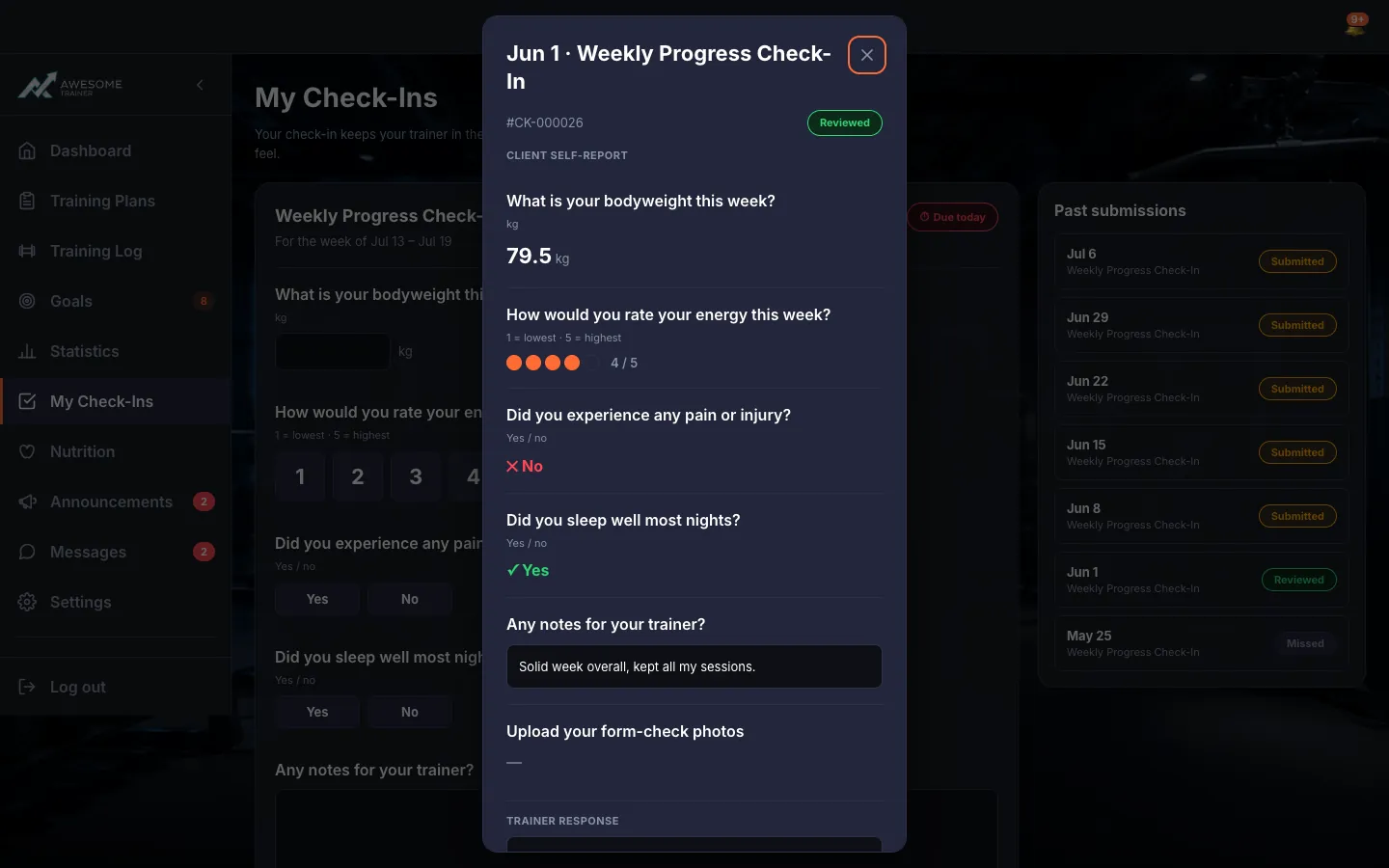
Review past submissions and your trainer's response. Below the form is the "Past submissions" list with status badges (Submitted / Reviewed / Missed / Open). Click an item to open the "Check-in details" read-only dialog: your "Client self-report" answers, and — once your trainer has reviewed it — the "Trainer response" and a "Plan adjusted" marker.
Tips
If nothing's due right now: "No check-in due right now — check back when your trainer schedules the next one."
If your submission hasn't been looked at yet, you'll see: "Awaiting your trainer's review." — sit tight, your trainer will get back to you.
The "Check-in reviewed" notification deep-links straight to the details, so you can read your trainer's response right away.
Troubleshooting
| Symptom | Cause | Fix |
|---|---|---|
| "Answer all required questions to submit." / "Please enter a valid number." | A required question was skipped, or a number field has an invalid value. | Fill in the missing answer and put a valid number in the numeric field — then your submission will go through. |
| "Only JPEG, PNG or WebP files can be uploaded." / "File too large." / "You can upload at most 4 images." | Unsupported format, file too large, or you already have 4 images. | Switch to JPEG/PNG/WebP, shrink the image, or remove one of the existing photos first. |
| "Your trainer hasn't set up a check-in schedule for you yet." | Your trainer hasn't started a check-in schedule for you. | Nothing to do on your end — ask your trainer; they set when your check-ins begin. |