Set up check-in templates and schedules
For: Trainer
As a trainer you decide what your clients answer and how often: you build a template and assign it with a schedule.
Before you start
- How to get here: /trainer/checkins, or the dashboard "Check-Ins" widget.
- Two tabs are waiting: "Review Queue" and "Templates & Schedules".
Steps
Get to know the console. The "Check-Ins" page has two tabs: "Review Queue" (with the count awaiting) collects incoming, not-yet-reviewed check-ins, and "Templates & Schedules" holds your templates and recurring schedules.
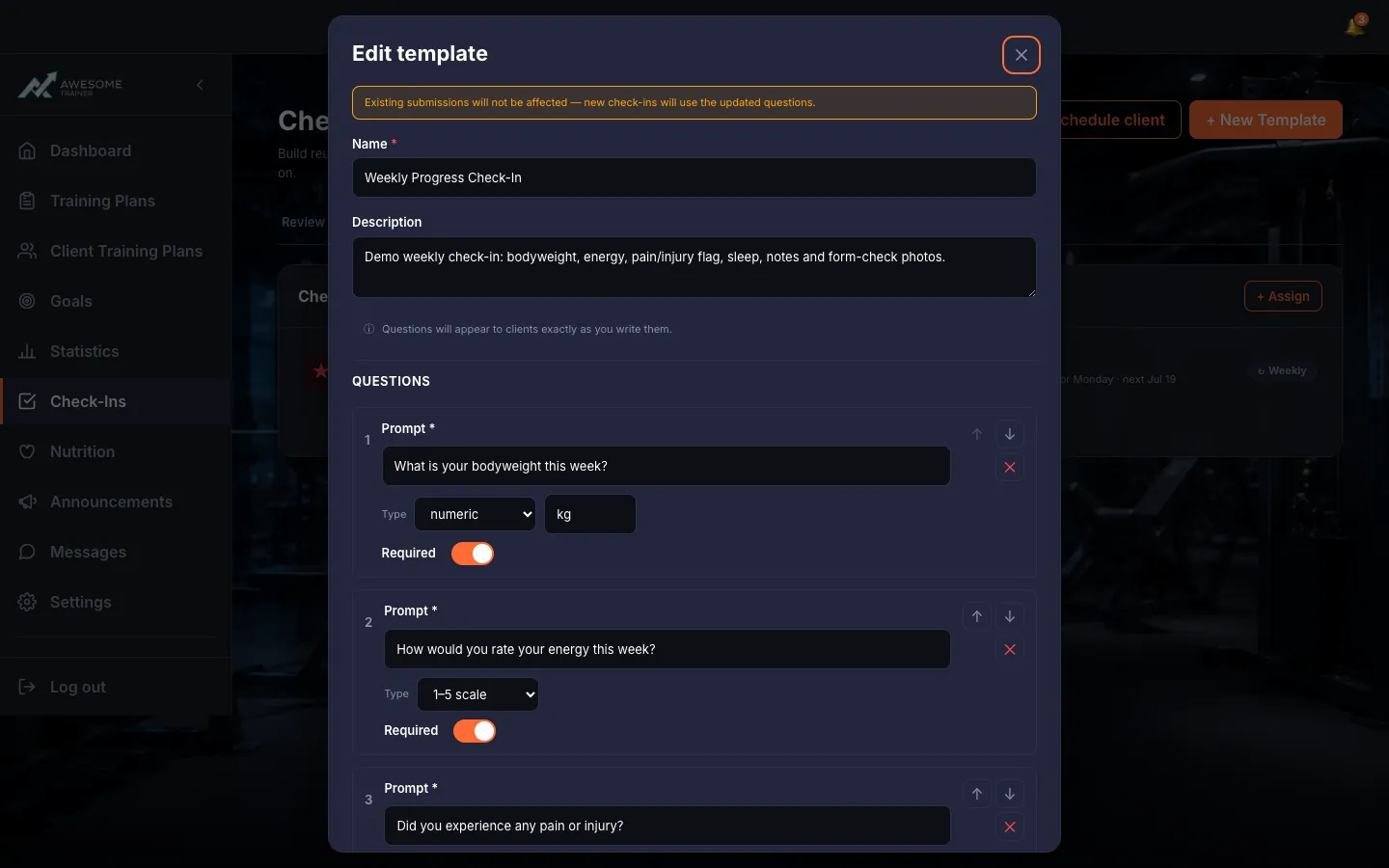
Create a template. "+ New Template" opens the editor: "Name" (required, e.g. "Elite Weekly Review"), "Description", then the "Questions" section. For each question you set the "Prompt", "Type" (numeric / 1–5 scale / yes/no / free text / photo upload), a "Unit" for numeric, plus the "Required" and "Flag as concern indicator" toggles. Move questions up/down or delete them, and "+ Add question" adds another (max 10). On save: "Template created."
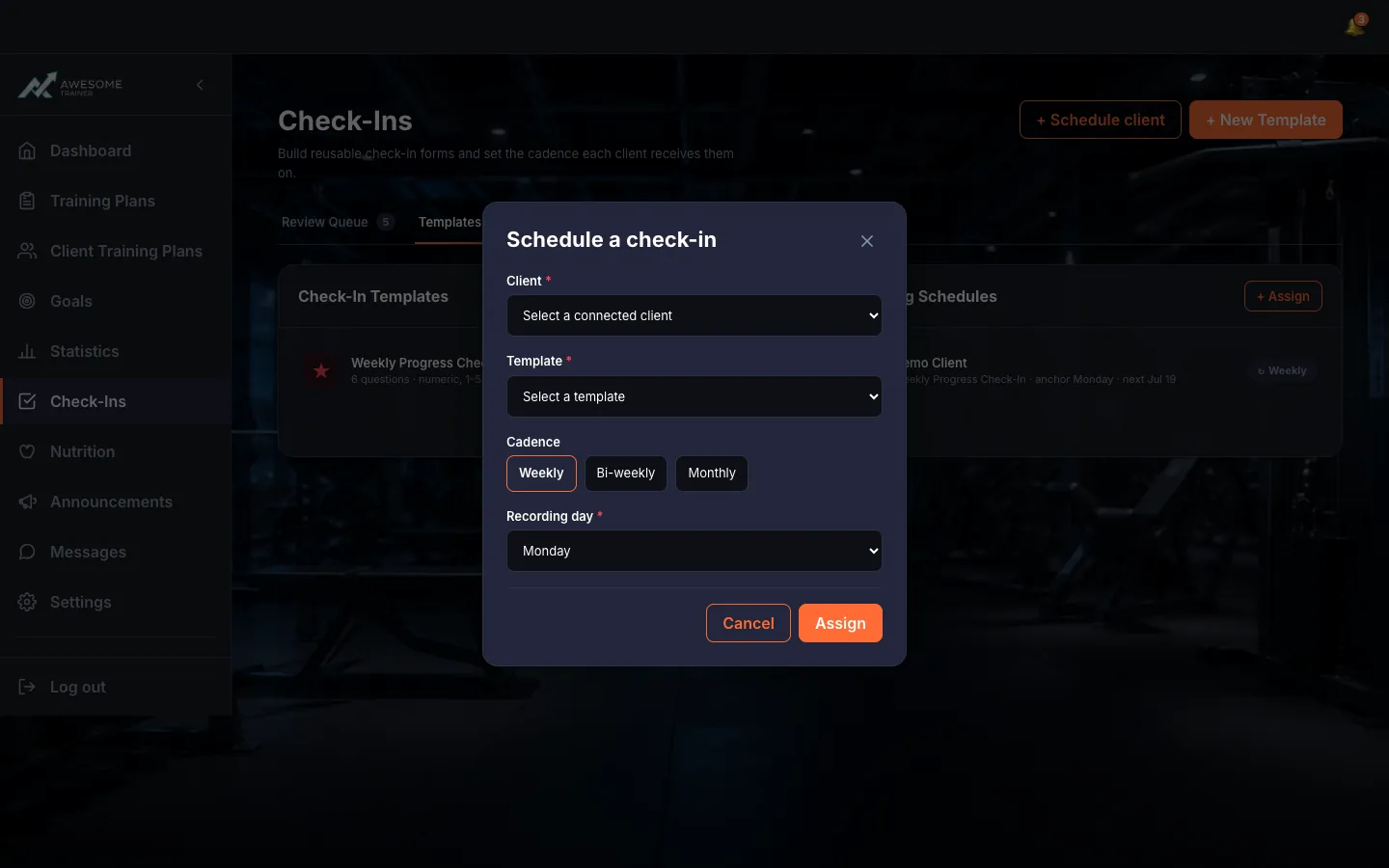
Assign a schedule to a client. "+ Assign" opens the "Schedule a check-in" dialog: "Client" (from your connected clients), "Template", "Cadence" (Weekly / Bi-weekly / Monthly) and "Recording day" (a weekday or a day of month, depending on cadence). The "Assign" button saves it: "Schedule assigned."
Manage a schedule's details. Click a schedule to see its details: "Next due", "Status" (Active / Inactive), the "Activate" / "Deactivate" toggle, plus the "Save changes" and "Delete" buttons. If a schedule already has history, deactivate it instead of deleting — that way its past stays intact.
Tips
Questions appear to clients exactly as you write them — and when you edit a template, existing submissions stay unchanged; only new check-ins use the updated questions.
Troubleshooting
| Symptom | Cause | Fix |
|---|---|---|
| "This client already has an active check-in schedule. Replace it?" | A client can have only one active schedule at a time. | Choose "Keep current" to leave it as is, or "Replace" to set up the new one in its place. |
| "This schedule has check-in history and can't be deleted. Deactivate it instead?" | The schedule already has check-in history, so it can't be deleted. | Deactivate it instead — the schedule stops, but the past check-ins are preserved. |