Edit, archive or delete a goal, and reaching a goal
For: Everyone
You can refine, set aside or delete your goals at any time — and when you reach one, the app celebrates it.
Steps
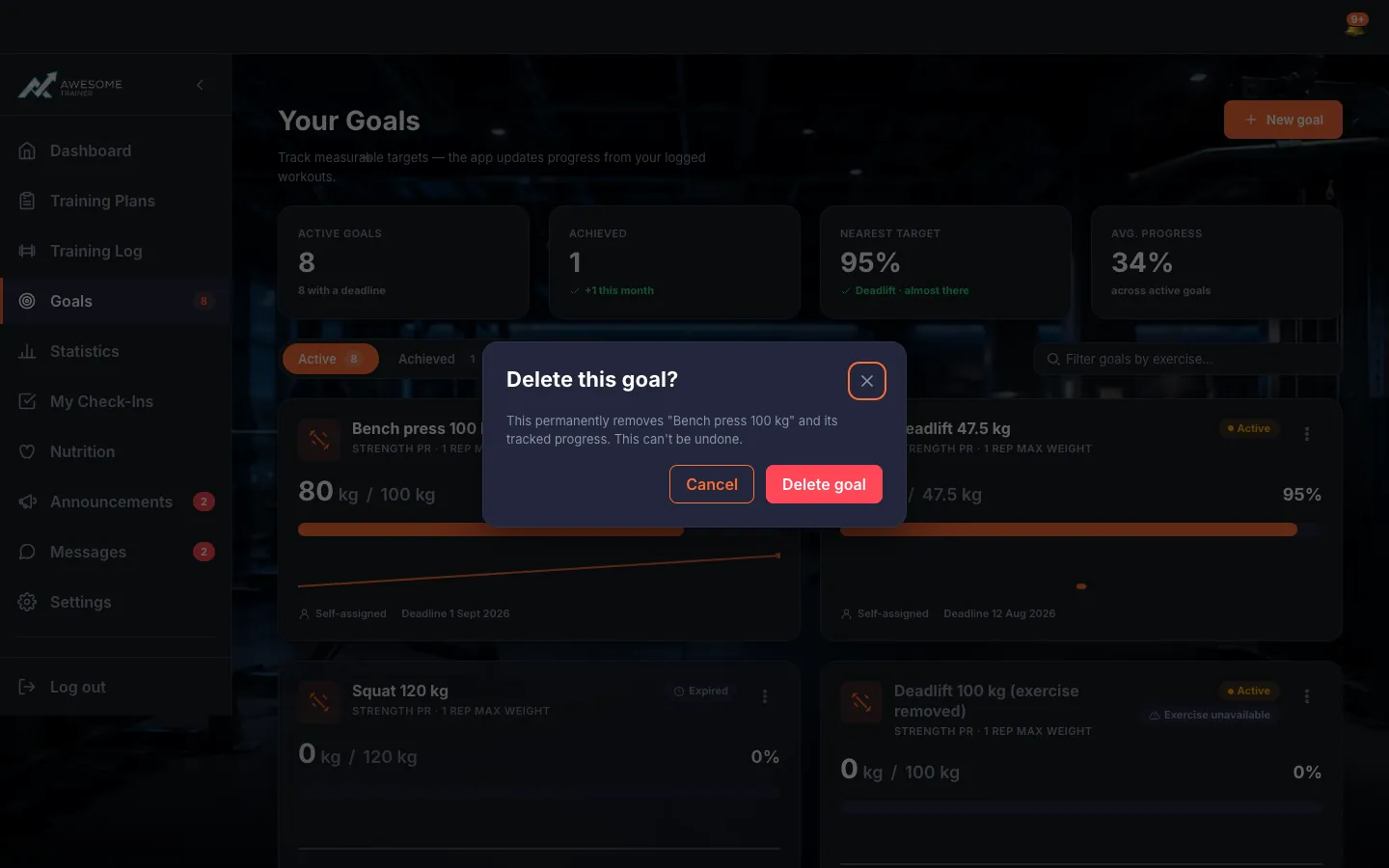
Edit, archive or delete. Every card has a menu (⋯ "Goal options"): "Edit" to fine-tune it, "Archive" to set it aside, and "Delete" to open the "Delete this goal?" dialog. One thing to remember: you can't delete a goal your trainer assigned.
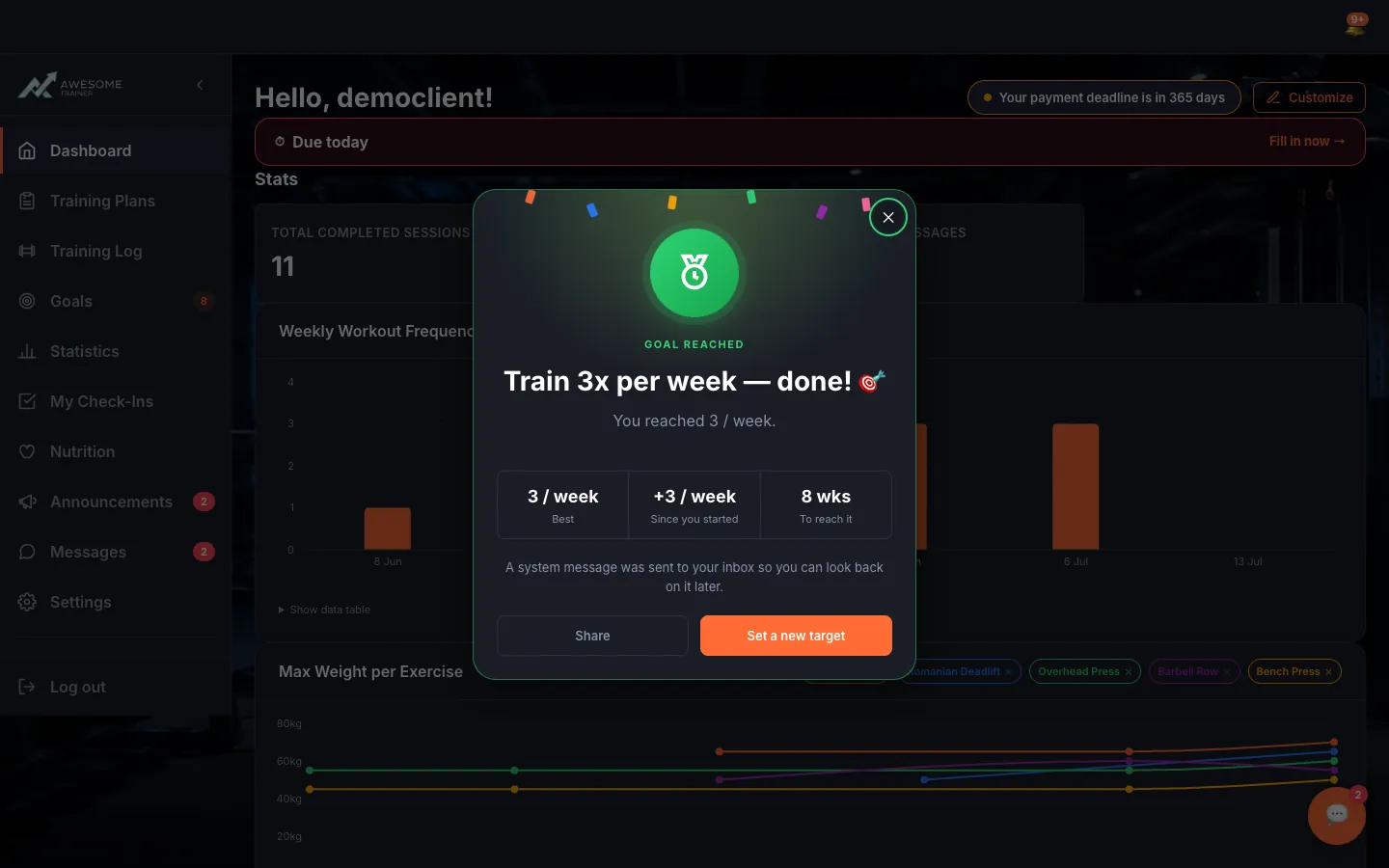
Celebrate a reached goal. When a goal crosses its target — usually right after you finish a workout — the "Goal reached" overlay pops up wherever you are in the app. It shows the value you hit, a few stats (Best, Since you started, To reach it), and you can line up the next one straight away with "Set a new target".
Tips
When editing, you can't swap the goal type anymore — if you want to track a different metric, just create a new goal.
When a goal comes true, we also drop a message in your inbox about it, so you can revisit the moment whenever you like.
Troubleshooting
| Symptom | Cause | Fix |
|---|---|---|
| "You can't delete a goal your trainer assigned." | Your trainer assigned this goal to you. | If it's really no longer needed, ask your trainer to remove it. |
| "Couldn't load your goals". | Loading your goals failed. | Press the "Retry" button and check that your connection is fine. |