Manage a client's training plans
For: Trainer
View and build your clients' training plans on their behalf — with a client selector and the exact same form you use for your own plans.
Before you start
- How to get here: /trainer/clients, or the "Plans" link on a client row.
- You need an active connection with the client to create a plan.
Steps
Select the client. At the top of the "Client Training Plans" page, use the "Client:" selector to pick whose plans you're looking at. Until you choose one: "Select a client to view their training plans." If you arrive via a client row, that client is already selected for you.
Review the client's plans. Once you've picked a client, their training plans list appears. Some plans come marked "read-only" — you can view those but not reshape them — and the rest you can edit freely.
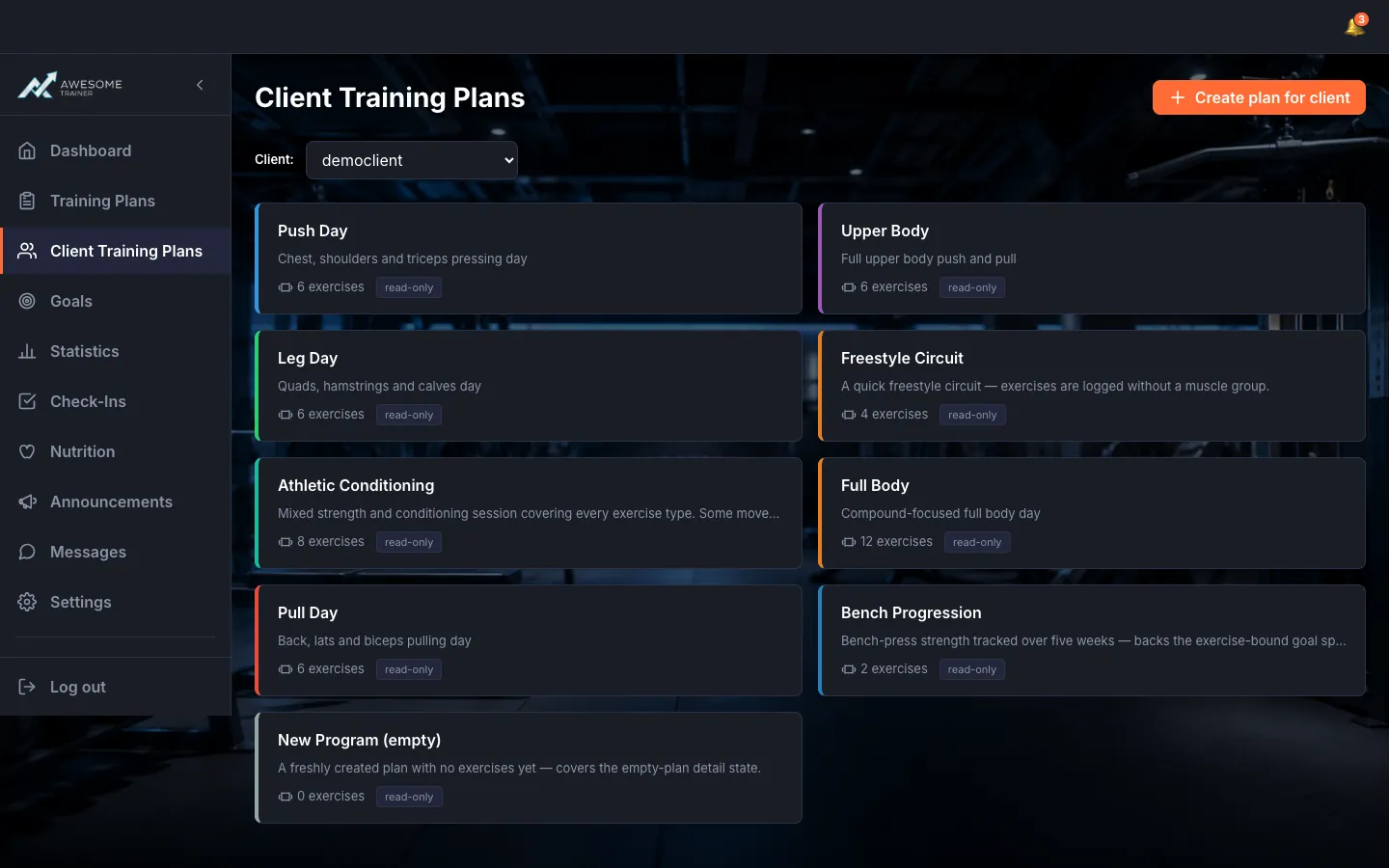
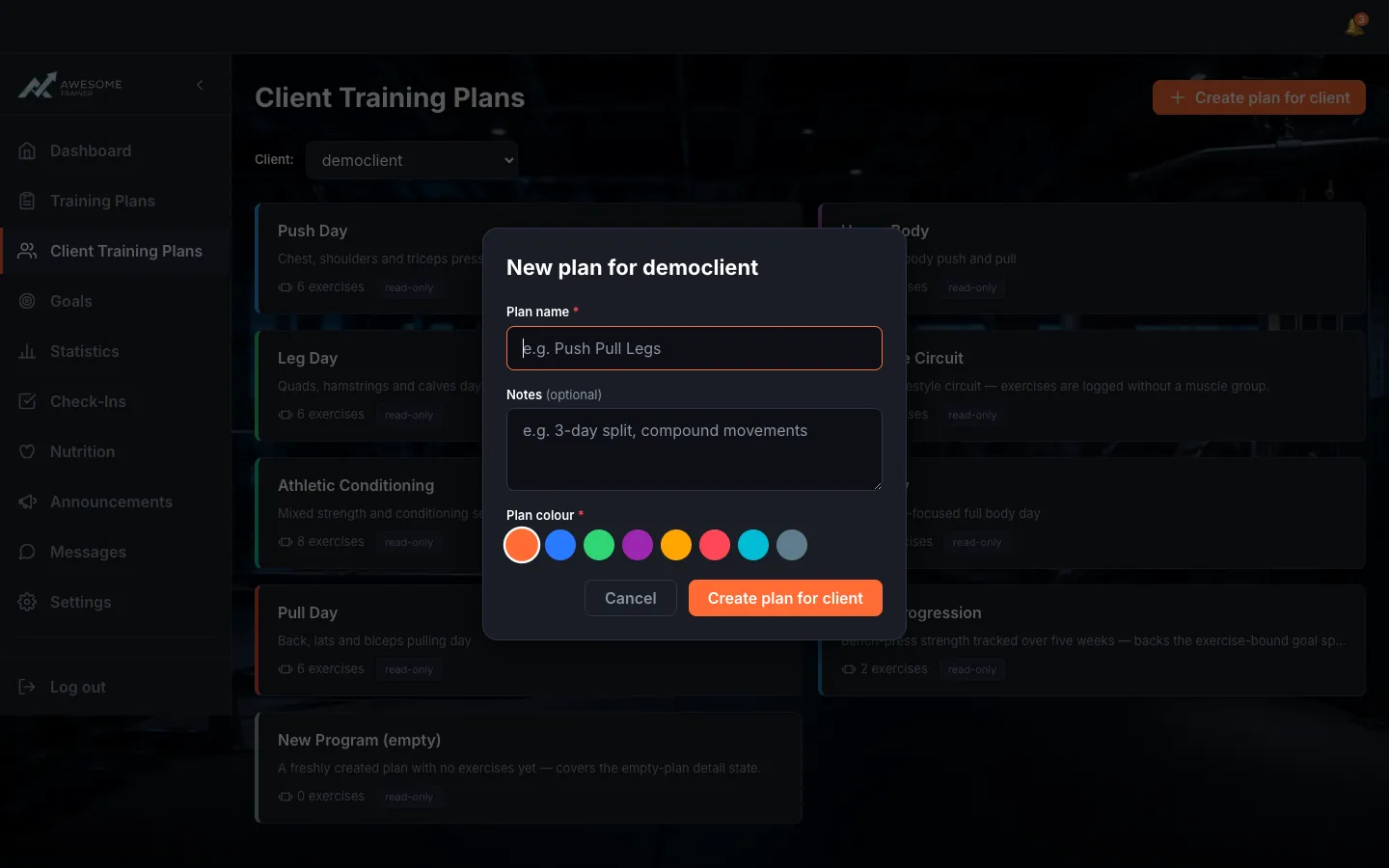
Create a plan on the client's behalf. The "Create plan for client" button opens the "New plan for …" dialog: Plan name, Notes, Plan colour — the same form as for your own plans. The only difference is that the plan is created for the client. You can start editing it right after.
Tips
If the client has no plans yet, you'll see: "This client has no training plans yet." — create one with the button above.
The plan is always created for the client, not for you — so it stays theirs if they later carry on solo.
Troubleshooting
| Symptom | Cause | Fix |
|---|---|---|
| "Failed to load clients." / "Failed to load the client's training plans." | A temporary load hiccup. | Retry — it usually comes back after a refresh. |
| "You are not linked to this client and cannot create plans for them." | You don't have an active connection with the client. | Invite them first and wait for the pairing to be approved — then you can build plans for them. |