Start a workout and log your sets
For: Client
This is where training comes alive: pick a plan and run it in real time — log your sets exercise by exercise, take your rests, and save the whole session with one tap at the end.
Before you start
- You start here: "Start Workout" at /workout.
- One thing you'll need: at least one training plan that already has exercises in it.
Steps
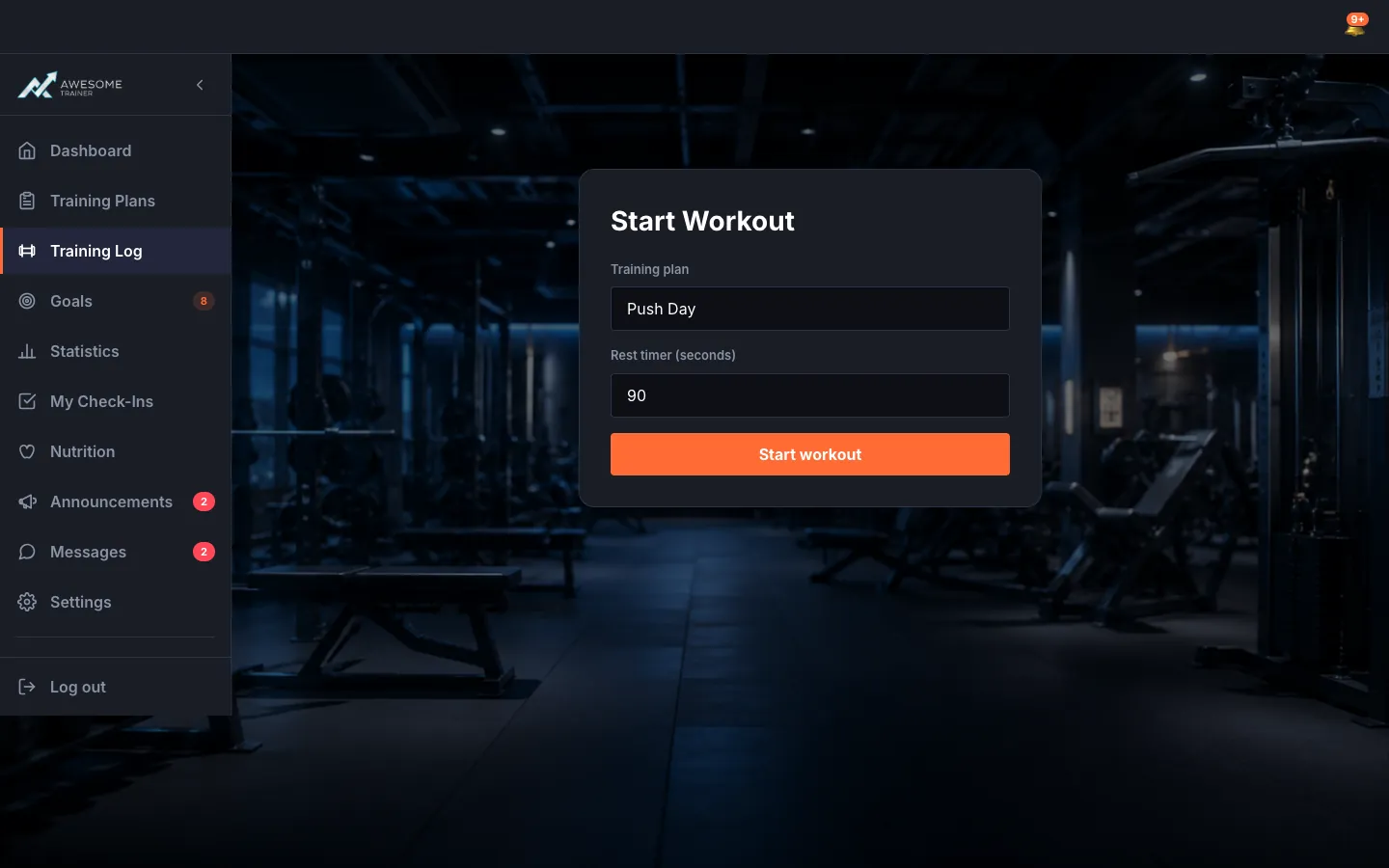
Start the workout. On the "Start Workout" screen, pick today's plan from the "Training plan" dropdown. Set how long the "Rest timer (seconds)" should run, then hit "Start workout" — and you're in.
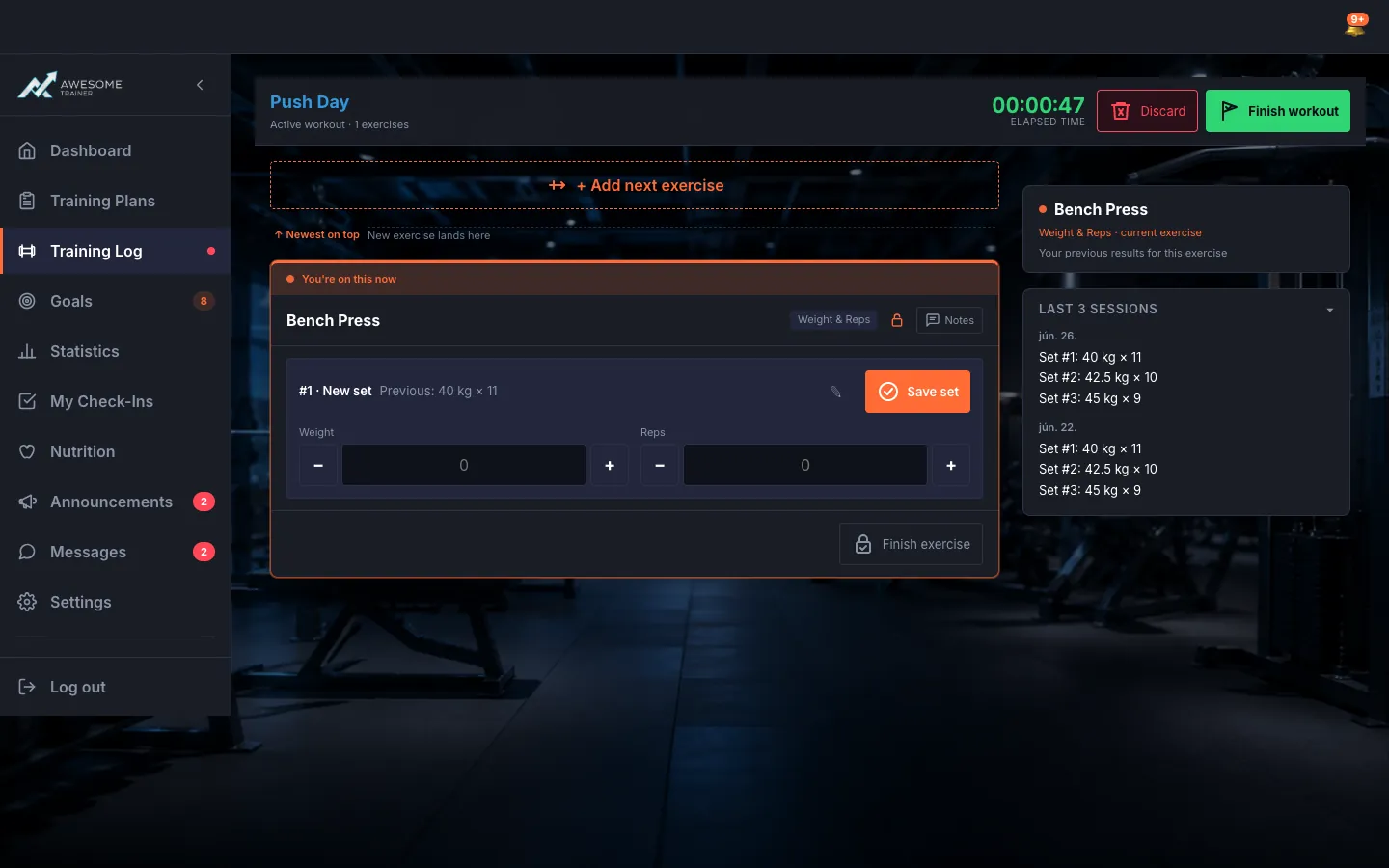
Add your exercises. During the session you always see what you're working on: "Training plan: …" and the "Elapsed time" next to it. Switch between the "Current" and "History" tabs any time. The "+ Add next exercise" button opens the "Select next exercise" list — that's how you bring in exercises one by one.
Record your sets. For the current exercise, fill in the fields — weight and reps, or distance and time for cardio — and use the +/- buttons to dial values in fast. "Save set" banks it, "+ Add set" opens a fresh one. When you're done with the exercise, "Finish exercise" closes it out.
Take a rest. The moment you save a set, the "REST TIMER" kicks in and counts down to your rest time, then nudges you: "Start your next set!". Ready sooner? The "Skip" button jumps you straight ahead.
Check your previous results. Wondering where you left off? On the "History" tab, the "Last 3 sessions" panel expanded shows what you hit on this same exercise before — so you know exactly how much to add today.
Tips
You can drop a quick note on any set with the "Toggle set notes" button — handy when something stood out mid-workout.
You can jot notes for the whole exercise too in the "Exercise notes" field, then keep them with "Save notes".
Closed an exercise too early? A finished exercise reopens with the "Reopen exercise" button, and you can delete a set that went wrong.
Troubleshooting
| Symptom | Cause | Fix |
|---|---|---|
| "You already have a workout in progress. Finish it before starting a new one." | An earlier session is still open. | Finish or discard the workout in progress, then start a new one — only one runs at a time. |
| "This plan has no exercises — add exercises to the plan first." | The plan you picked is still empty. | Open the plan editor, add a few exercises, then start the workout again. |
| "This exercise has already been added to the current workout." | You're trying to add the same exercise twice. | Pick a different one from the "Select next exercise" list. |