Remove a client
For: Trainer
When your work together has ended, you can remove the client in the "Manage clients" dialog.
Before you start
- How to get here: Settings page → "Manage clients" section (badge: "Trainers only").
Steps
Open the management dialog. On the Settings page, in the "Manage clients" section, hit the "Manage clients" button. Right at the top of the dialog you'll see the "Your current clients (…)" list — everyone you're working with.
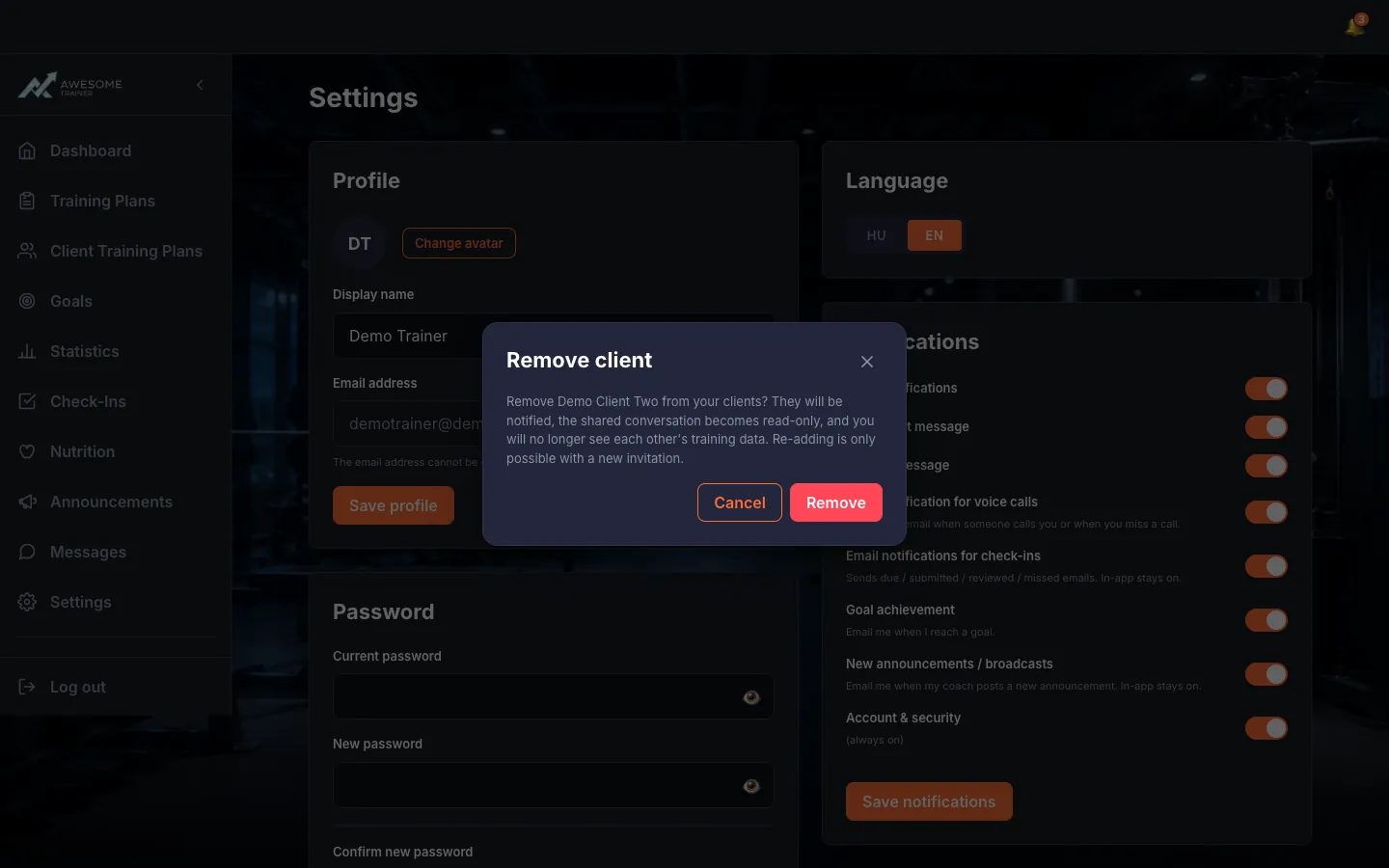
Remove a client. "Remove" opens a confirmation dialog that's upfront about what happens: the client is notified, your shared conversation becomes read-only, and you'll no longer see each other's training data. Confirm with "Remove" and you'll get "… removed. They have been notified."
Tips
Once you've removed someone, re-adding them only works with a fresh invitation.