Export and import your data
For: Everyone
You can download a snapshot of your training plans and statistics, export to Google Drive, and import an earlier export.
Before you start
- Where to find it: the Settings page (/client/settings, /trainer/settings, /settings).
Steps
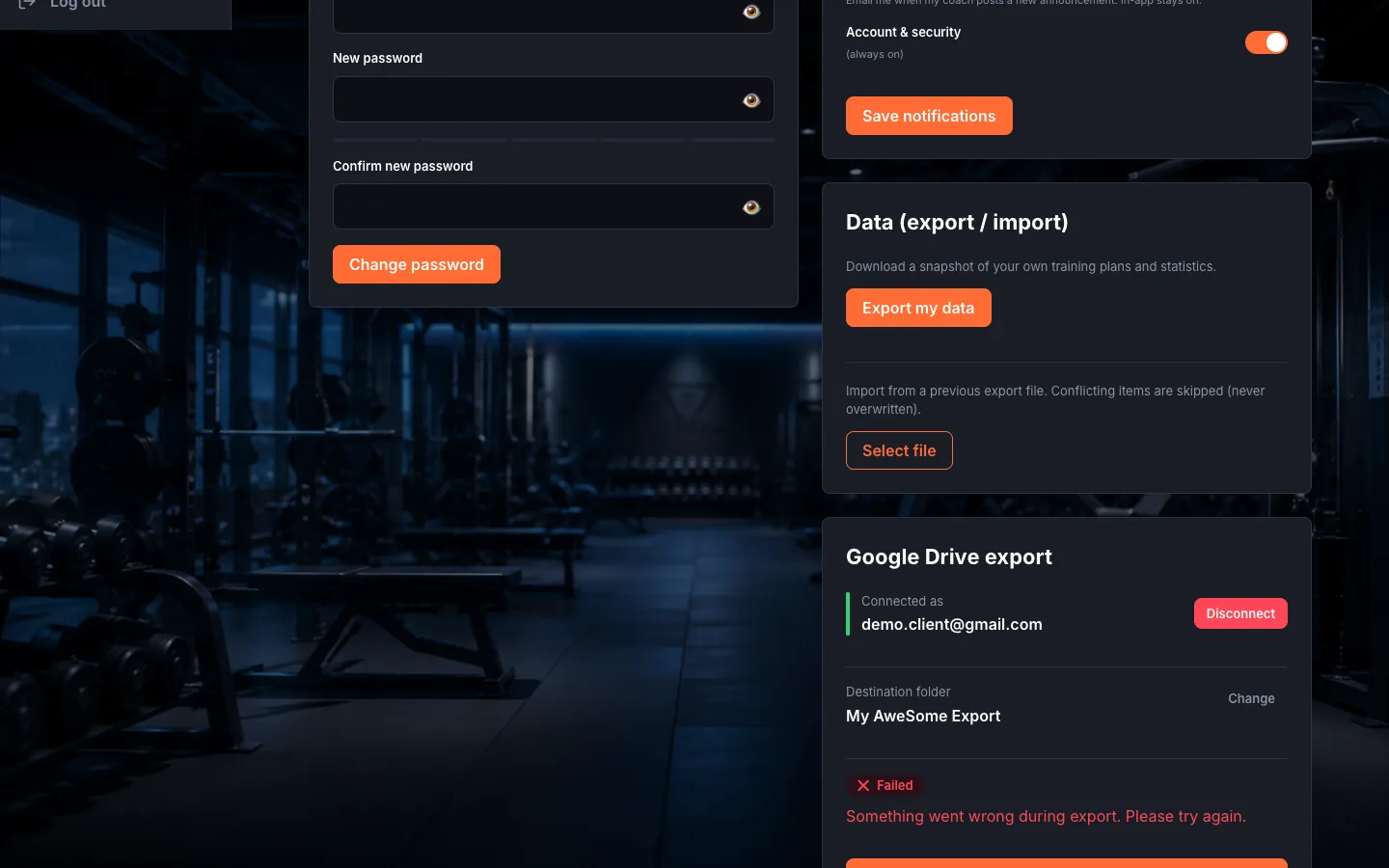
Export or import your data. On the "Data (export / import)" card, "Export my data" downloads a snapshot of your training plans and statistics. To import, use "Select file" (a previous export). The same card holds the "Google Drive export" part: "Connect Google", "Choose folder" (an empty destination), "Export now" — it runs in the background (Queued / Running / Complete / Partial / Failed), and "Disconnect" removes the connection.
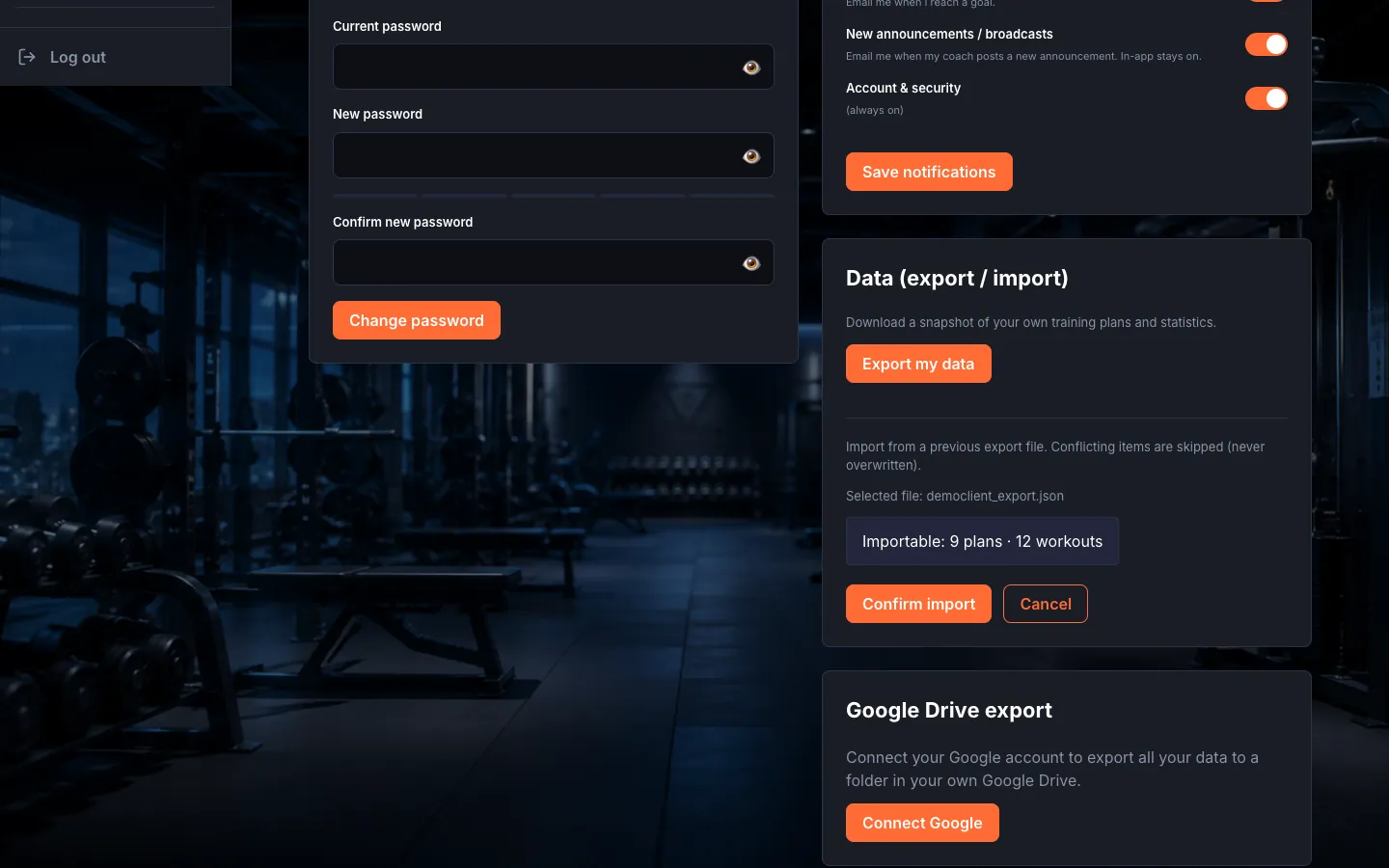
Confirm the import. After you choose a file you get a summary: "Importable: … plans · … workouts", plus how many items will be skipped for conflicts. If it looks right, "Confirm import" → "Import complete. … items skipped." Your existing, conflicting items are never overwritten.
Tips
The import never overwrites your existing, conflicting items — the "… items skipped" refers exactly to those.
Troubleshooting
| Symptom | Cause | Fix |
|---|---|---|
| "Invalid file…" / "Unsupported file type…" | The chosen file isn't a previous export, or is the wrong type. | Choose a valid, previously exported file. |