Use the AI assistant
For: Everyone
A conversational helper that's one click away from any page. Just tell it what you need — it builds a training plan, messages your trainer, or shows you an exercise.
Before you start
- Where to find it: the floating "Open the AweSome trainer assistant" button (FAB) in the corner of the page.
- Good to know: the assistant acts on your behalf, so it only does what you could do yourself.
Steps
Open the assistant. Click the floating "Open the AweSome trainer assistant" button. If a reply is waiting, the button lets you know: "… unread messages".
Start a conversation. The panel greets you: "Hi! I'm your AweSome trainer assistant." — "Ask for a training plan, message your trainer, or look up an exercise." Pick a suggestion chip ("Create a pull day", "Message my trainer", "Show me the bench press"), or type in the "Write a message…" field and press "Send".
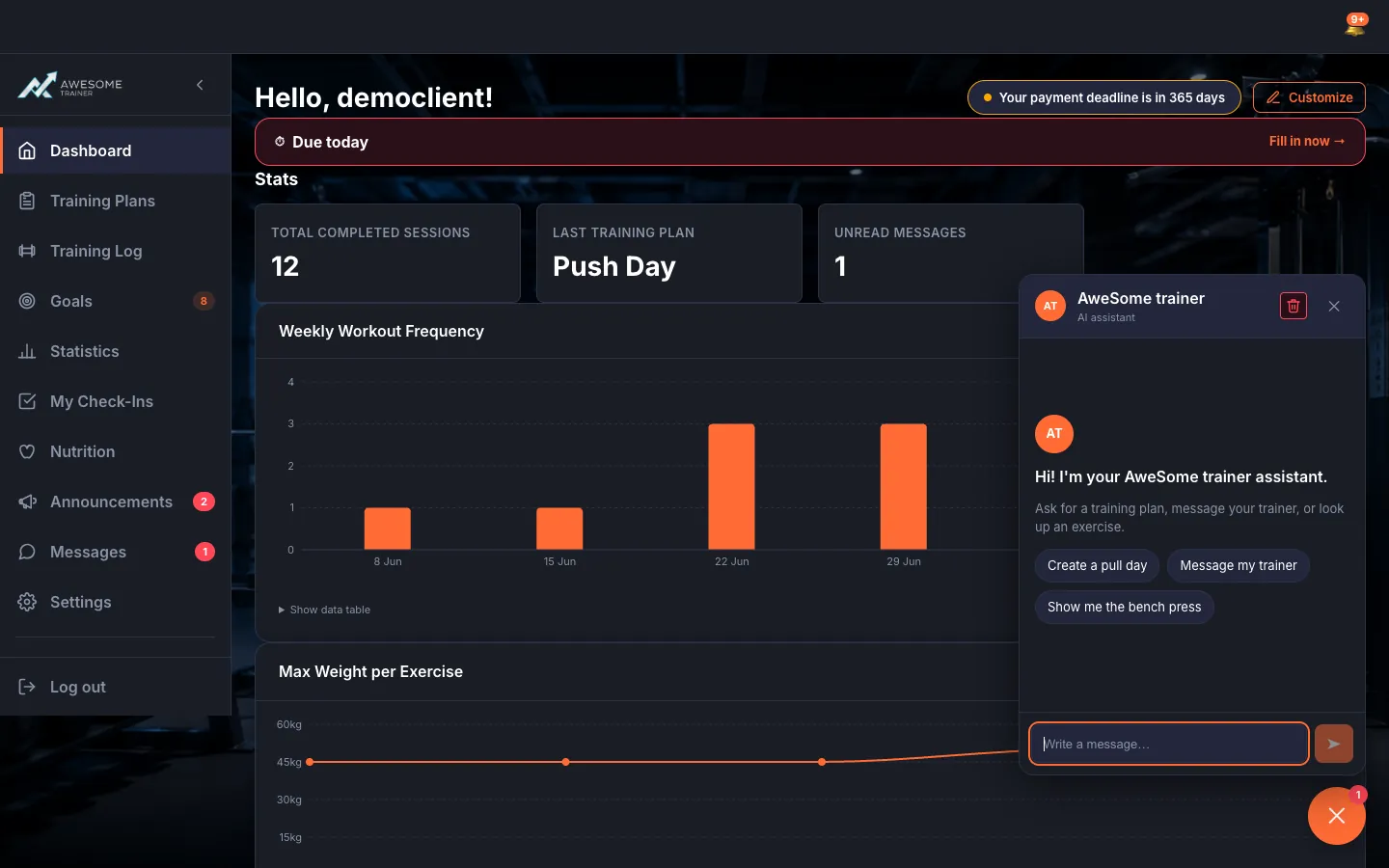
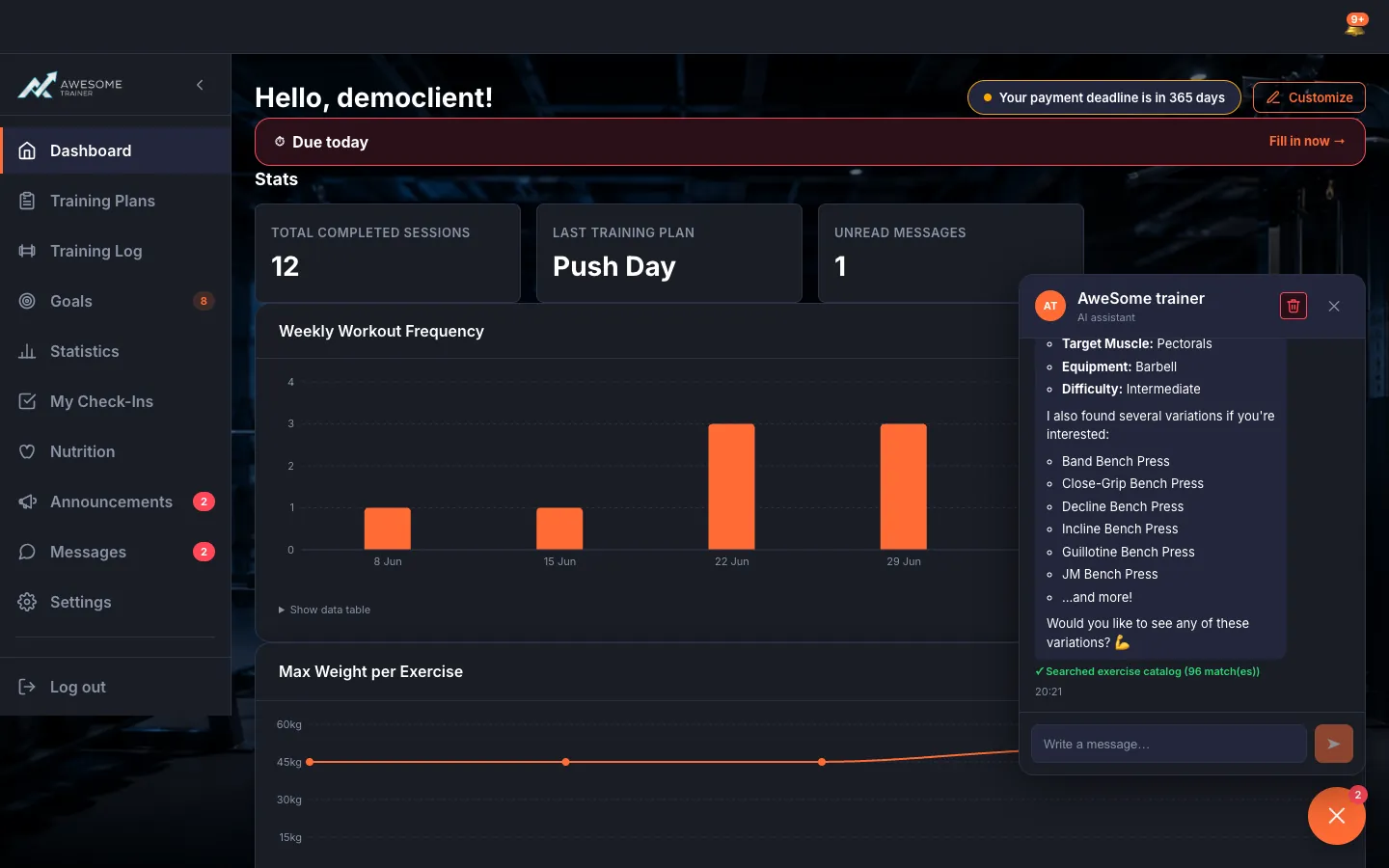
Follow the reply and actions. The conversation runs in bubbles — yours as "You", the assistant's as "AweSome trainer" — and you'll see "The assistant is typing…" while it works. When it finishes something it says "Action completed", and for an exercise it may pop up an animated demo (GIF).
Clear the history. The "Delete all previous messages" button opens the "Delete all previous messages?" dialog. "Delete all" wipes both your questions and the replies for good — this can't be undone.
"Delete all" permanently wipes the conversation history — this can't be undone.
Tips
The suggestion chips give you a quick start — no need to phrase a perfect sentence, just tap one.
If you see "I can't perform that action (not permitted).", the thing you asked for is outside your role.
Troubleshooting
| Symptom | Cause | Fix |
|---|---|---|
| "Couldn't load the conversation." | Temporary network or server error. | Close and reopen the panel, or try again a little later. |
| "The assistant is temporarily unavailable. Please try again." | The AI service is momentarily unavailable. | Tap "Retry", or wait a few minutes. |
| "I can't perform that action (not permitted)." | The action you asked for is outside your role's permissions. | Ask your trainer, or do the action on the appropriate screen. |
| "Couldn't delete the history. Please try again." | The delete was interrupted. | Try again with the "Delete all" button. |