Customize your dashboard
For: Everyone
You can reorder the widgets on your dashboard, remove some of them or add new ones.
Steps
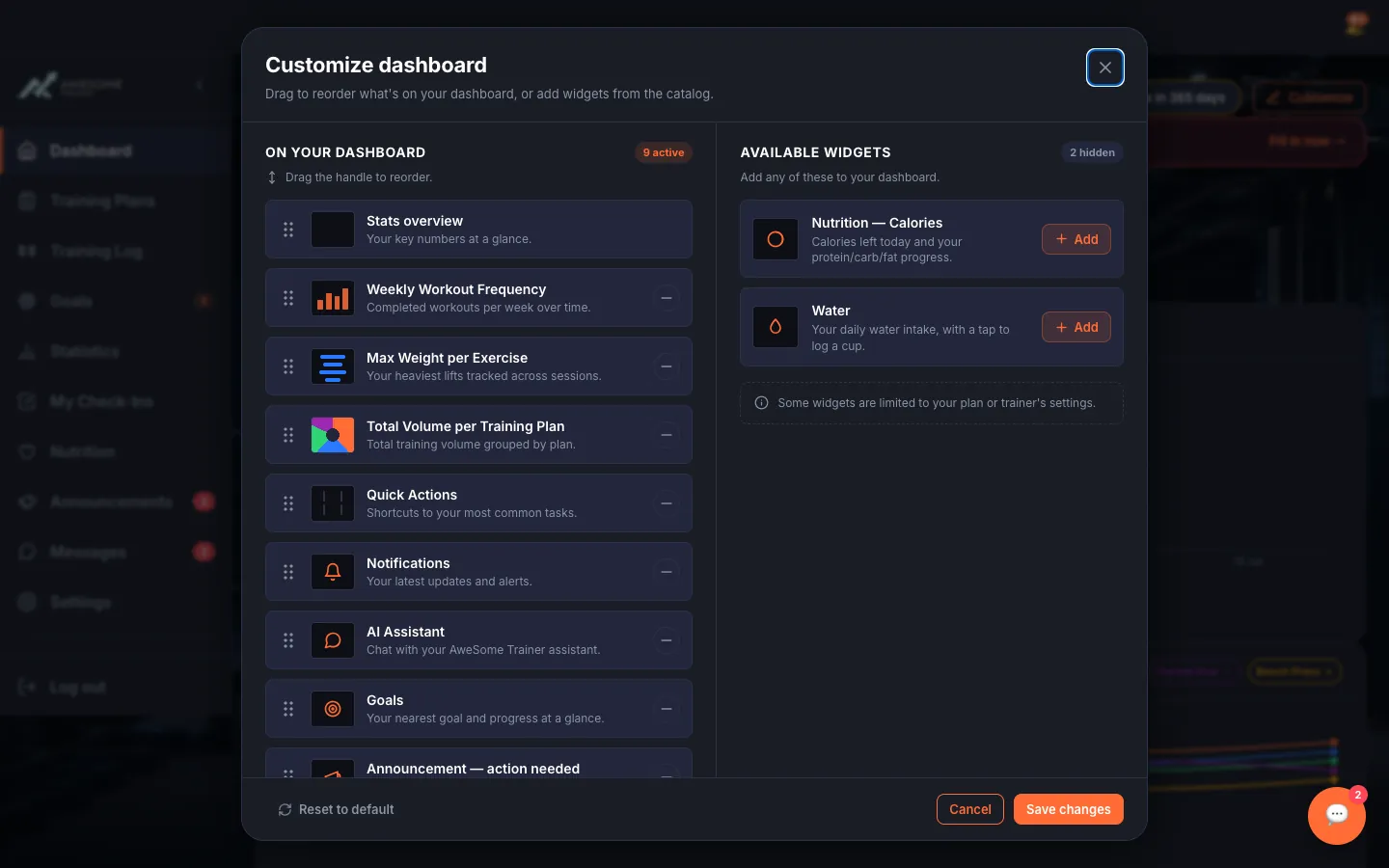
Customize the layout. The "Customize" button opens the "Customize dashboard" dialog. In the "On your dashboard" list, drag widgets by the handle to reorder, take them off with "Remove" (required ones show "Required — cannot be removed"), and add new ones from the "Available widgets" list with "Add". Finish with "Save changes" — or use "Reset to default" to go back to the original layout.
Tips
Required widgets ("Required — cannot be removed") can't be taken off — they stay within reach at all times.
If you scramble the layout, "Reset to default" brings the original back in a single move.
Troubleshooting
| Symptom | Cause | Fix |
|---|---|---|
| "Couldn't save your dashboard. Changes were reverted." | Saving your customization didn't go through. | Retry with "Save changes"; if it still won't stick, refresh the page and save again. |
| A widget is missing from the "Available widgets" list. | Some widgets are limited to your plan or your trainer's settings. | Check your plan and your trainer's settings — as the dialog notes: "Some widgets are limited to your plan or trainer's settings." |